
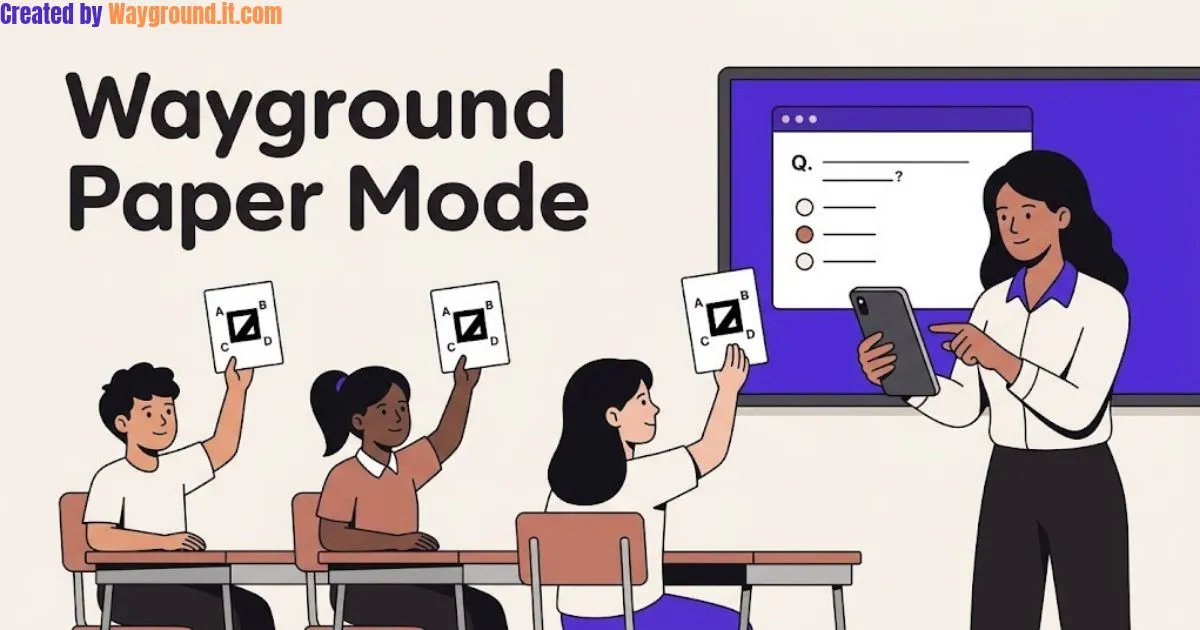
Wayground Paper Mode lets students answer a live classroom quiz with printed Q-cards instead of phones or laptops. You display each question, students rotate their cards to show an answer, and you scan the cards with the Wayground mobile app. See the official Paper Mode overview.
It can help when the Chromebook cart is unavailable or you want everyone looking at the same question. The practical work is preparing readable questions, matching cards to students, and checking that responses register.
This guide covers that setup, a ready-to-use math question, and common problems. It is an independent guide based on published documentation, not an official Wayground tutorial or a hands-on product test.
What is Paper Mode, and what equipment do you need?
Paper Mode is a teacher-led response system: students use printed answer cards while you manage the digital session. Prepare a computer, a shared display, a smartphone with the Wayground app, and printed Q-cards. The format suits whole-class checks when individual student devices are unavailable.
Gather these before class:
- Computer and display: A projector or classroom screen students can read.
- Smartphone: The Wayground app, signed into your teacher account.
- Printed cards: A different numbered Q-card for each participant.
- Quiz: Clear multiple-choice questions with up to four answer choices.
Each card has A, B, C, and D around its edges. Students rotate the card so their chosen letter is at the top; the teacher scans the pattern. Students do not need to enter a game code or sign in individually. Wayground explains this in its Q-card guide.
Plan for internet access on the teacher’s devices. The published workflow connects the computer session to the mobile app; it does not establish a fully offline hosting option. Check your classroom connection before relying on it for a lesson.
How do you set up and run a Paper Mode quiz?
Prepare a short quiz, select Paper Mode, and assign the printed cards before starting. Open the matching session on your phone, then collect answers with the app’s camera. I recommend rehearsing one question first, so students can practice rotating their cards before you assess their understanding.
- Choose a focused quiz. Use one learning objective and a few carefully checked questions. Our guide to creating a Wayground quiz covers building your own.
- Select the mode. Open the assessment on your computer and choose Start now → Teacher-led → Paper mode. Preview the question set before class.
- Print the official Q-cards. Use Print in the setup to access the card PDF. Keep the complete card visible on the page; avoid decorative edits that obscure its pattern or answer letters.
- Assign cards. Choose Assign, then use an existing class or create a Paper Mode Group. Distribute cards according to the assigned numbers.
- Start on your computer. Select Start, then open the mobile app using the same teacher account. Find the session under Ongoing activity.
- Allow camera access. Open that session and grant the requested camera permission. Wayground’s current setup guide documents these controls.
- Run the practice question. Ask students to hold the selected letter at the top and keep the code visible. Check the response count against the students participating before moving on.
- Scan, submit, and discuss. Scan the raised cards, then tap Submit to record responses. The official walkthrough describes this submission step.
At the end, open Reports. Wayground identifies these sessions as Paper Mode in the Type column and allows manual evaluation of responses. Those details appear in its Paper Mode session documentation.
Keep a simple card-number roster beside your computer. That gives you a quick reference if students accidentally exchange cards during the activity.
How can you use the answers to check understanding?
Use the responses to decide what to explain next. Choose questions with plausible wrong answers, allow thinking time, and ask students to explain their reasoning afterward. A correct letter is useful evidence, but a brief explanation helps you judge whether the student understood the concept or guessed.
Here is an original question you can copy into a fourth-grade fractions review:
Which fraction is equivalent to 2/3?
- A: 3/4
- B: 4/6
- C: 2/6
- D: 3/2
Correct answer: B. Multiplying both the numerator and denominator by two gives 4/6.
The distractors give you something specific to discuss. Choice A adds one to both numbers, C changes only the denominator, and D reverses the fraction. A student selecting one of these may be applying that rule, but ask for their explanation before drawing a conclusion.
Try this teaching sequence:
- Collect an independent response. Give students time to calculate or draw a model before raising their cards.
- Discuss a tempting wrong answer. Ask, “Does adding the same number always preserve a fraction’s value?”
- Check transfer. Follow with an equivalent-fraction question using 3/5 and different answer choices.
For students who need another response method, offer a spoken answer or a separate paper response. Holding and rotating a card should not become the skill you are assessing.
Research offers some encouragement, with limits. A 2023 qualitative case study involving 41 Indonesian eighth-grade students reported generally positive perceptions of Quizizz Paper Mode during English assessment. It examined student perceptions in one setting, so it does not establish achievement gains for US classrooms.
What can go wrong, and when should you choose another mode?
Check the physical setup before assuming a missed answer reflects a learning problem. A blocked card, incorrect orientation, or card-number mix-up can interfere with the activity. Also consider the lesson goal: Paper Mode works around shared questions, while independent practice may call for a student-paced session.
Use this troubleshooting checklist:
- A card is missing from the scan: Ask the student to hold it upright with the pattern unobstructed. Try another scan before recording the response as unanswered.
- The selected answer looks wrong: Check which letter is at the top. Demonstrate the rotation again without revealing the quiz answer.
- A response appears under another name: Check the printed number against your roster and the assigned class.
- The camera will not open: Review the app’s camera permission in the phone’s settings.
- Questions are missing: Paper Mode supports multiple-choice questions; other question types in a mixed assessment will not appear. This restriction is stated in the official quick guide.
If the app or website cannot connect at school, ask your IT team to check access. Wayground’s technical guidance identifies school firewalls as a possible source of connection problems. Our Wayground troubleshooting hub covers broader issues.
Use this comparison to choose your format:
| Classroom need | Paper Mode | Student-paced live quiz |
|---|---|---|
| Student response method | Printed Q-cards | Individual devices |
| Question progression | Teacher controls the pace | Students progress independently |
| Preparation | Print and assign cards | Prepare devices and joining instructions |
| Suggested use | Shared checks and discussion | Independent classroom practice |
The pacing distinction follows Wayground’s live-mode documentation. For a wider comparison, see our Wayground game modes guide.
What else should teachers know about Paper Mode?
The practical questions usually concern card downloads, class size, reuse, and homework. These details matter when preparing materials or choosing a session format. Check the following before printing, especially if you plan to share one card set across several classes or reuse an existing assessment.
Where can I download the Q-cards?
Open a quiz’s Paper Mode setup and select Print to access the official PDF. Use those numbered cards rather than generating ordinary QR codes yourself. The cards’ answer letters and orientation are part of the response system.
How many students can participate?
Wayground’s documented card pack contains 60 unique Q-cards, supporting up to 60 participants per Paper Mode assessment. Give each participating student a different numbered card, then check that your class assignments match the cards you distribute.
Can I reuse cards for another class?
Yes. Wayground’s session guide says the cards are reusable across quizzes and classrooms. Check the number-to-student assignments for each group, and replace damaged copies when necessary. Keep sets organized so students do not accidentally receive duplicate card numbers.
Is Paper Mode the same as printing a quiz?
No. Students use the printed cards to communicate answers to questions displayed during a live session. They are not writing answers on a printed worksheet. The teacher’s app scans their choices and records the responses digitally.
The official card guide confirms the download and class-size details above.
Can students complete Paper Mode as homework?
Paper Mode is a live, teacher-led format. For independent work outside class, use an assigned session instead. Our Wayground homework guide explains the separate workflow for sharing an activity students complete on their own time.
Ready to try your first session?
Start with a short quiz, check your card assignments, and rehearse one scan. Then use the answers to choose your next explanation or practice question. If you still need the question set, create your first Wayground quiz before preparing the cards.