
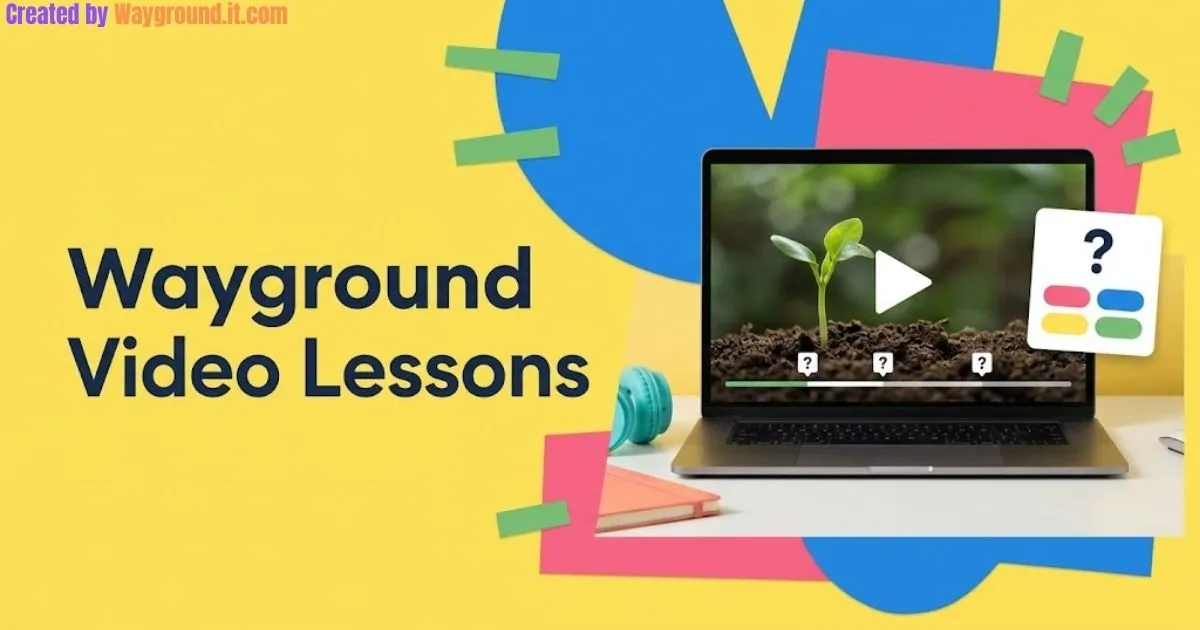
Wayground Interactive Video lets you place questions and notes inside a video lesson. Playback pauses at selected moments so students can respond before continuing. Teachers can run the activity live or assign it for independent work. Official video-session guide.
A well-placed question can reveal confusion while students are still working through an explanation, instead of after the whole video ends.
This independent guide covers setup, classroom choices, an original science activity, and practical limitations. Wayground was formerly called Quizizz.
What makes an interactive video useful for teaching?
An interactive video combines an explanation with planned opportunities to respond. Use it when students need to observe a process, follow a demonstration, or inspect visual evidence. Choose questions that reveal their thinking, then use those responses to decide what needs another explanation during or after the lesson.
A question about an unrelated detail, such as the narrator’s shirt color, adds an interruption without checking the lesson goal.
| Approach | Useful when | Your teaching focus |
|---|---|---|
| Teacher-led live session | The class needs guided discussion | Pause to compare explanations and address confusion |
| Student-paced live session | Students need different amounts of review time | Check responses while remaining available to help |
| Homework assignment | Students are preparing or reviewing independently | Give clear instructions and follow up on difficult questions |
Wayground documents live and homework delivery for this resource. For the platform’s wider workflow, see our complete Wayground guide.
The free Starter plan lists Interactive Videos among its resource formats, but availability varies by region. It also lists a 20-resource storage limit; check your account before building a large video collection. Starter plan details.
How do you create and assign a video lesson?
Start with a video that teaches one clear idea, add questions where students have enough information to answer, and review the finished activity before sharing it. Then select live delivery or homework. Check playback on a school device so a working teacher preview does not hide student access problems.
Build the resource
- Open Create → Video in your teacher account.
- Choose YouTube, Vimeo, or an upload from your device, Google Drive, or OneDrive.
- Select your clip, make any available cuts, and choose Proceed.
- Move to a useful timestamp and select + Add a Question.
- Choose a question type, enter the content, and save it.
- Use Add a Note for a brief explanation where needed.
- Review the timeline and select Publish.
You can also choose Generate with AI to draft questions. Check their accuracy and timing before using them. These steps follow the official creation guide.
Choose how students will participate
- Open the published resource.
- Select Start now for a live session and choose the pacing, or Assign for homework.
- Review the available settings and confirm Start or Assign.
- Share the session link or code; start the live session when students are ready.
Wayground provides these delivery instructions. Our homework setup guide covers scheduling and assignment choices in more detail.
Check Prevent seeking, playback speed, and Show captions before assigning. The documented captions option requires a YouTube source that already has captions. Video settings.
If your class uses an LMS, our Google Classroom integration guide explains class assignment and the separate requirements for grade syncing.
Give students a clear task
Include one sentence explaining what they should learn and another explaining what to submit. For example: “Explain why the hemispheres experience opposite seasons. Watch the clip, answer the embedded questions, and bring one remaining question to class.”
State whether students may consult notes and whether the activity counts toward a grade.
What does a well-planned video activity look like?
A useful activity starts with a specific learning goal and places each question after relevant evidence. Mix a short knowledge check with an explanation task, then finish with a new application. The example below targets a common science misconception and gives you prompts you can adapt to your chosen clip.
Example: What causes the seasons?
Learning goal: Explain how Earth’s tilt produces opposite seasons in the Northern and Southern Hemispheres.
Choose a clip that clearly shows Earth’s tilted axis and sunlight reaching each hemisphere. NASA’s explanation of the seasons provides a reference for checking the science: seasonal changes primarily reflect Earth’s tilt, not simply its changing distance from the Sun.
Use these three original questions:
- After the explanation of Earth’s axis: “What mainly causes Earth’s seasons: its tilted axis or changes in distance from the Sun?” Answer: Its tilted axis.
- After a diagram showing the Northern Hemisphere tilted toward the Sun: “Which hemisphere is experiencing summer?” Answer: The Northern Hemisphere.
- After the explanation of opposite seasons: “Why can December be summer in Australia and winter in the United States?” Expected response: The Southern Hemisphere tilts toward the Sun while the Northern Hemisphere tilts away.
Position these questions around the explanation in your actual clip. Do not copy arbitrary timestamps from another lesson.
I recommend using the third question to guide discussion. A correct choice on the first question does not show whether a student can explain the relationship between the hemispheres.
Use responses to plan the next lesson
Open Sessions, select the activity report, and review the Questions or Overview tab. These views help you inspect individual responses and shared errors. Official report navigation.
Video activities also have See video insights, with completion and segment-rewatch information. Use these as clues, not proof of attention or understanding. Video reporting features.
A replayed section may contain a difficult concept, unclear narration, or a distraction that caused a student to miss something. Read the answer beside that viewing information before deciding what happened; our Wayground reports guide explains how to interpret results.
Which mistakes and technical problems should you avoid?
Avoid interrupting every few seconds, publishing unchecked questions, or assuming that finished playback proves understanding. Also test the source video on the network students will use. A lesson can be well designed and still fail because its source has disappeared or the school’s network blocks the video service.
Keep each interruption purposeful. Ask a question after a complete explanation, not halfway through a sentence. If two questions check the same fact, replace one with a prompt that asks students to explain or apply it.
Review AI-generated distractors. Read every answer option alongside the clip. Remove choices that are also defensible, and rewrite questions that depend on information the narrator never supplied.
Check the source before class. Wayground identifies blocked YouTube access and removed videos as causes of playback failure. Ask school IT to investigate restrictions rather than treating every failure as an account problem. YouTube playback troubleshooting.
For YouTube Player for Education, Wayground identifies youtube.com, youtubeeducation.com, and youtube-nocookie.com as domains administrators should review for safelisting. Official network requirements.
Prepare a backup task. Keep a short explanation and the key questions available separately. A student who cannot stream the video still needs a way to engage with the concept; our common-error guide covers broader technical checks.
Which video limits and settings should teachers check?
Before assigning, check what your account can create, whether your source includes captions, and how students will move through the lesson. Also prepare an alternative when a student cannot stream the clip. The answers below cover practical limits that could affect your first assignment or its accessibility.
Is Wayground Interactive Video free?
The Starter plan includes Interactive Videos in its listed resource formats, with regional differences in availability. That does not guarantee every question type or advanced setting is included. Check your account’s options and storage allowance before preparing the lesson.
Which video files can I upload?
Wayground accepts MP4, OGG, and WebM uploads smaller than 100 MB. Its creation guide lists uploads from your device, Google Drive, or OneDrive. Check the exported file’s format and size before uploading it to your lesson.
Can students skip ahead or rewatch a section?
The Prevent seeking setting blocks forward skipping when enabled. Students can still pause or rewind to revisit material, according to the video-session guide. Choose the setting to match the task; replaying an explanation can be useful during practice.
Do uploaded videos automatically receive captions?
Do not assume that an upload receives captions automatically. Wayground documents its Show captions option for YouTube videos that already contain captions. Preview the actual student experience and provide an accessible alternative when the source lacks the support students need.
Can I print an interactive video as a worksheet?
The printing guide’s note explicitly excludes Interactive Videos from worksheet downloads. For a paper alternative, prepare the essential explanation and questions separately, making sure students can answer without watching an unavailable clip. Printing documentation.
Start with one explanation and a few useful questions
Choose a focused clip, place questions after the relevant evidence, and test playback before sharing. Use the responses to decide what comes next. If students need a separate check afterward, our quiz creation guide walks through building one.