
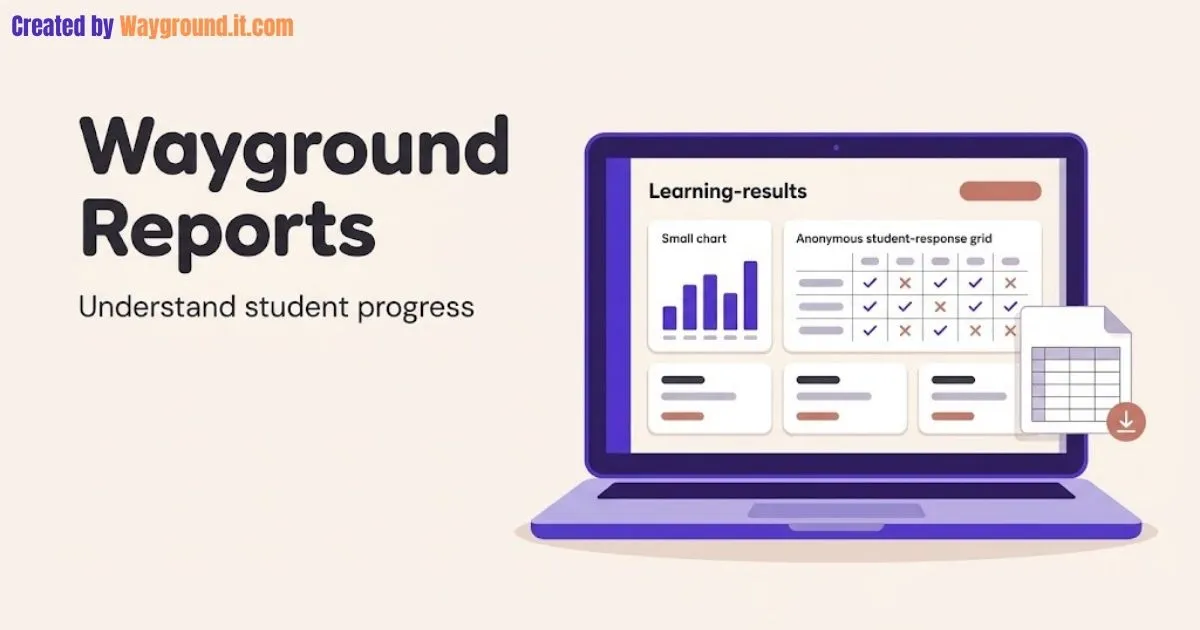
Wayground reports show how students performed in a live activity or homework session. To find them, open Sessions in your teacher account and select the activity. You can review responses, investigate missed questions, and use the available export tools to keep a record. These steps follow Wayground’s reporting guide.
A class average is a starting point. The more useful question is what students need next: another explanation, a different example, or time to finish.
This independent guide covers reading results, downloading them, and choosing a practical follow-up. For the wider teaching workflow, start with our guide to using Wayground.
What do Wayground reports tell you about learning?
Reports help you examine participation and performance, but the measures answer different questions. Accuracy concerns the credit earned for responses; a game score also reflects game mechanics. Read the answers behind the numbers before deciding whether a student needs reteaching, more practice, or help completing the activity.
The distinction between accuracy points and session scores matters:
| Measure | What it represents | How to use it |
|---|---|---|
| Accuracy points | Credit for correct and partially correct answers | Review assessed performance |
| Session score | Game performance, potentially affected by speed and power-ups | Understand the leaderboard result |
Wayground explains that power-ups can change session scores without changing accuracy points. Its accuracy documentation separates those measures, including which points sync through supported LMS integrations.
Also review the activity’s conditions. Students answering after discussion have had a different opportunity from students completing a first attempt independently. Record those conditions when you compare results across lessons.
I recommend starting with one question you need the report to answer. “Who confused the two processes?” produces a more useful review than simply finding the lowest scores.
How do you open, download, and share a report?
Open the relevant activity, review its results, then choose the output you need. A spreadsheet is useful for sorting and calculations; a printed summary can support a planning meeting. Before exporting, confirm the activity title, class, and date so you work with the intended session.
- Find the session. Open Sessions and filter or search by activity, class, date, or status. Some older help pages call this area Reports.
- Review the questions. Use Questions to investigate difficult items. Open the original question and check its wording and answer key before interpreting mistakes.
- Check individual responses. Use Participants to open a student’s results. The Overview view brings responses together; the official report guide explains these views.
- Finish any manual grading. Where Evaluate is available, review the response, adjust the awarded points, and save. Follow the flexible grading instructions.
- Download the results. Open the completed session report and select the download icon. Wayground’s export guide specifies an .xlsx spreadsheet.
- Label the file clearly. Include the class, topic, and date in its filename. Keep an unchanged export before adding your own notes or calculations.
In Excel, sort the whole data range so names stay attached to the correct results. Wayground’s spreadsheet guidance describes class-level and player-level data and sorting by name.
Print or email the appropriate summary
The print menu offers three summaries: questions, participants, or all individual participant reports. To email results through the platform:
- Open the report and select Email all parents, if available.
- Review the recipients and customize the message.
- Send after confirming that each student’s information goes to the intended guardian.
Wayground documents these controls in its printing and email guide. Add a specific next step to the message, such as the skill the student should practice.
How can you turn results into a useful follow-up lesson?
Choose one pattern worth investigating, then connect it to a short teaching response. Check the question first, inspect the selected answers, and ask students to explain their thinking. Use a fresh question afterward to see whether they can apply the idea beyond the item they already saw.
Here is an original English-language arts item you can use to check subject–verb agreement:
Which sentence uses the correct verb?
- A: The basket of apples are on the table.
- B: The basket of apples is on the table.
- C: The basket of apples be on the table.
- D: The basket of apples were on the table.
Answer: B. The subject is the singular noun “basket”; “of apples” describes the basket’s contents.
Choice A can reveal a useful discussion point: students may be matching the verb to the nearby plural noun “apples.” Ask them to identify the subject before deciding that this explains their error.
Turn that check into a short follow-up:
- Model the sentence. Underline “basket” and briefly bracket “of apples.” Explain why the verb agrees with the subject.
- Ask for a new response. Use “The box of pencils ___ on the shelf” with appropriate answer choices.
- Change the subject’s number. Follow with “The boxes of pencils ___ on the shelf.” Ask students to explain why the answer changes.
Our quiz-creation guide covers building the follow-up. For independent practice, use the homework setup guide.
For a written explanation, decide the scoring criteria before reviewing responses. Wayground’s flexible grading allows partial credit within the points assigned to the question; applying a consistent rubric makes that credit easier to explain.
Keep your planning note brief: the item reviewed, the possible misconception, the response you chose, and what the next question revealed. That creates a usable teaching record without turning every quiz into a lengthy data exercise.
Why might your report look incomplete or different?
Differences can come from account access, unfinished grading, repeat attempts, or the type of assessment you opened. Check those conditions before assuming the platform lost an answer. The relevant report and grading rules matter, especially when comparing an ordinary classroom session with a school-managed Common Assessment.
Your account may include fewer reporting features
The Starter plan documentation lists basic class-level reports and report sharing. It also flags regional differences, so check your account’s included features before expecting every view shown in a demonstration.
AI Analyze has separate requirements. The current AI analysis guide limits it to eligible English and math teachers on School and District plans, with additional conditions for the class and assessment.
Repeat attempts can change the comparison
Wayground’s ordinary-session accuracy guide describes class accuracy using each student’s best response to each question across attempts. Its Common Assessment guide instead describes using each student’s best attempt.
Check the report type and attempt settings before comparing percentages. A result after several attempts does not describe the same starting knowledge as a first attempt.
Grading or standards information may need attention
Common Assessment reports can exclude students with ungraded open-ended responses from relevant accuracy calculations until scoring finishes. Review pending evaluations before drawing conclusions from that summary.
For standards reporting, confirm that questions carry the intended tags. Wayground documents adding standards after a session, including manual tagging and AI-assisted tagging; review the match between the question and standard yourself.
If you cannot find the activity, check the teacher account and remove restrictive filters. For wider access problems, use our Wayground troubleshooting guide.
What else should teachers know about Wayground reports?
Teachers often need to know where results are stored, whether exporting is possible, and how much of the reporting is free. These answers summarize the documented workflow. Use the specific report’s controls and your account’s feature list when an option differs from an older tutorial.
Where can I find a report after a game?
Open Sessions in the teacher account that hosted the activity, then select the relevant session. Check the date and class if several activities share a title. Older support articles may refer to this area as Reports.
Can I download results into Excel?
Yes. Wayground documents downloading a completed session’s report as an .xlsx spreadsheet using the download icon. Keep an original copy before sorting or editing the data, and check student names against your roster before using the results.
Are reports available on the free plan?
The Starter plan includes basic class-level reports and sharing, according to Wayground’s plan guide. That does not establish access to every advanced reporting tool. Check your regional plan details and account before depending on a specific feature.
Do power-ups change students’ accuracy?
Power-ups can affect the session score and leaderboard position without changing accuracy points. Use the response-level evidence and awarded accuracy points when reviewing understanding. A higher game score alone does not show that a student understood more content.
Can I give partial credit after a session?
Yes, where flexible grading is available, you can evaluate responses and adjust points within the question’s maximum. Save your changes after grading. Wayground states that these adjustments affect accuracy points rather than changing the game score.
Put one report to work
Open a recent activity, investigate one difficult question, and choose one follow-up task. Check the next response before expanding the intervention. If you need a new session first, our Wayground hosting guide walks through the setup.