

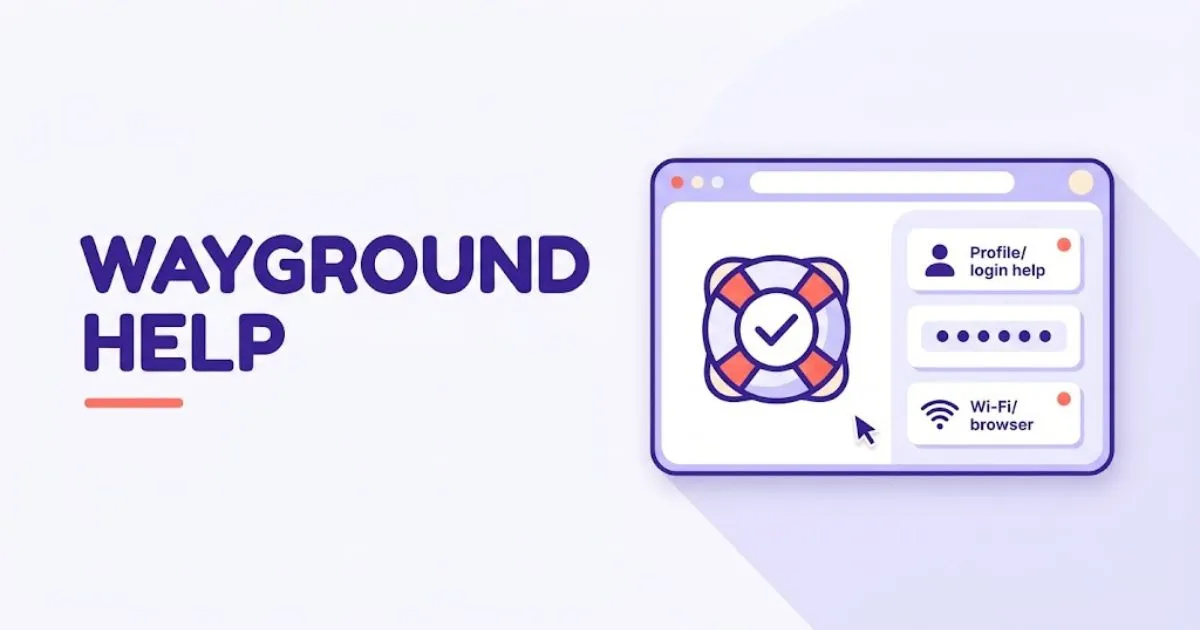
Wayground help usually begins with four checks: confirm your login method or game code, refresh the page, use an updated browser, and test another device or network. If the problem continues, it may involve browser cookies, school firewall restrictions, account permissions, or settings controlled by the person hosting the session.
This independent guide covers the most common login, code, loading, connection, and account problems. It also explains when students can fix an issue themselves and when they need help from a teacher, school administrator, or Wayground Support.
If you need general platform instructions rather than troubleshooting, begin with our What Is Wayground? or How to Use Wayground guides.
What problems can this Wayground help guide fix?
This guide covers unsuccessful logins, invalid join codes, blank pages, missing images, disconnected live games, assignment-access problems, and browser or network errors. The fastest way to find the cause is to determine whether the problem affects one account, one device, one session, or everyone using the same school network.
Use these clues to narrow it down:
- If only one student is affected, check that student’s code, account, browser, and device.
- If the whole class is affected, check the host’s session and the school internet connection.
- If Wayground works at home but not at school, the school’s firewall or content filter may be involved.
- If the problem follows the user across different devices, it may be connected to the account or sign-in method.
In my review of Wayground’s current support documentation, four technical causes appear repeatedly: firewall configuration, browser cache or cookies, unstable internet, and an outdated browser.
That makes these checks a better starting point than creating another account, reinstalling every application, or rebuilding a quiz.
How do you troubleshoot Wayground step by step?
Start with the least disruptive checks and change only one thing at a time. Verify the page, code, and account first, then test the browser, device, and internet connection. This approach protects saved work and helps you identify the actual cause instead of temporarily hiding the problem.
- Identify the exact problem Note what you were doing when the error appeared. For example, were you logging in, entering a code, loading a quiz, starting a live game, submitting an answer, or opening a report? Save the complete error message and take a screenshot before refreshing the page.
- Check the website address Confirm that you are using the correct Wayground page. Students joining a game should follow the link or instructions supplied by their teacher. Avoid look-alike websites and unofficial sign-in pages.
- Verify the join code Carefully enter the code again and check for missing or incorrect digits. A code belongs to a specific session and may stop working when the teacher ends that session. Ask the host to confirm the code displayed on the active dashboard. Our Wayground code guide explains where codes come from and why they sometimes fail.
- Refresh and sign in again Close duplicate Wayground tabs, reload the page, and sign in again if necessary. Use the same method originally connected to your account, such as Google, Microsoft, Clever, ClassLink, email, or phone. Creating another account with a different sign-in method can separate you from your existing quizzes or classes. See our Wayground login guide before making a new account.
- Test a private browser window Open Wayground in an Incognito or private window. If it works there, a browser extension, stored cookie, or cached file may be interfering with the normal session. You can also try another updated browser. Wayground’s support guidance lists Chrome, Safari, Firefox, and Edge among its supported browsers, with Chrome recommended.
- Clear browser data only if required On Windows or Chromebook,
Ctrl + Shift + Deleteopens the browser-data controls in most browsers. On a Mac, useCommand + Shift + Delete. Save unfinished work first because clearing cookies can sign you out of other websites. Wayground provides separate cache and cookie instructions for common browsers. - Try another device or network Test the same action on another available device. You can also compare the school connection with another permitted network. If Wayground works on another network, the original Wi-Fi, firewall, or content filter is the likely cause. Report that result to authorized school IT staff instead of changing security settings yourself.
Which solution matches your Wayground problem?
Match the fix to the symptom before changing settings. An invalid code usually needs attention from the teacher hosting the session, while a blank page may point to browser data or filtering. A failed school login may require help from the administrator managing Google, Microsoft, Clever, or ClassLink access.
| Problem | Likely cause | Best first action |
|---|---|---|
| Login repeatedly returns to the sign-in page | Wrong login method, blocked cookies, or an expired session | Use the original login method and test a private window |
| Code is rejected | Typo, inactive code, or ended session | Re-enter it and ask the host to confirm the active code |
| Page is blank or images are missing | Cache, extension, firewall, or content filter | Reload, test private browsing, and try another network |
| Live game keeps disconnecting | Weak Wi-Fi or insufficient bandwidth | Close unused tabs and test the connection |
| LMS activity will not open | Wrong school account or integration permissions | Sign in to the assigned LMS account |
| Editing controls are missing on mobile | Mobile authoring limitations | Create or edit the activity on a computer |
For join problems, students should first verify the code and session with the host. Wayground’s official joining instructions also state that activities shared through Google Classroom, Canvas, or Schoology may require students to sign in to the connected LMS account.
For whole-class loading problems, test whether the issue appears only on school Wi-Fi. According to Wayground’s connectivity guidance, firewall restrictions may prevent users from accessing the platform, joining through Google Classroom, or displaying images correctly.
Bandwidth can also affect larger sessions. Wayground’s published technical information recommends more than 15 Mbps for approximately 30 students and more than 90 Mbps for 100 students.
These figures are guidelines rather than performance guarantees. Network congestion, Wi-Fi coverage, device condition, and other classroom traffic can still affect a session.
What Wayground troubleshooting mistakes should you avoid?
The most common mistakes are changing several settings simultaneously, repeatedly entering an expired code, creating duplicate accounts, clearing browser data before saving work, and assuming every error means Wayground is down. A controlled test across another browser, device, and network produces more useful evidence.
- Do not share a live code publicly. If unknown users join, ask the host to secure or restart the session.
- Do not keep retrying an old code. The teacher may have ended the original session.
- Do not create another account immediately. First check which login method holds your saved content.
- Do not bypass school security controls. Give the results of your network test to the school IT administrator.
- Do not send a vague support request. Include the error, screenshot, time, device, browser, network, and steps already attempted.
- Never send your password. Support staff do not need it to investigate an account problem.
For more focused instructions, use our Wayground login not working, Wayground code not working, and common Wayground errors guides.
If those steps do not solve the problem, visit the official Help Center or contact Wayground Support. The company lists support@wayground.com and an online request form on its official contact page.
The official Help Center currently reports a median response of under six hours for tickets requiring human review. That is a published median, not a guaranteed response time.
Frequently asked questions
Why is Wayground not loading?
Wayground may not load because of an unstable internet connection, outdated browser, cached files, interfering extension, or school firewall. Refresh the page, test a private window, update your browser, and compare another permitted network before deleting browser data.
Why is my Wayground code not working?
The code may be mistyped, expired, linked to a session the teacher has ended, or opened through the wrong school account. Enter it again carefully, then ask the host to confirm the active code and session status.
How do I fix a Wayground login problem?
Use the same Google, Microsoft, Clever, ClassLink, phone, or email option originally connected to the account. If the login loops, try a private browser window. Contact the school administrator when a managed single-sign-on account fails.
Does Wayground work on phones and tablets?
Students can participate through supported mobile browsers and Wayground apps. Wayground’s technical documentation recommends that teachers use a desktop or laptop to create and edit quizzes, so switch to a computer when authoring controls are unavailable.
How do I contact Wayground Support?
Search the official Help Center, use the in-platform help option, email support@wayground.com, or submit the official request form. Include your account email, screenshot, error message, browser, device, and troubleshooting steps, but never include your password.
How can you get back to your Wayground session?
Identify the exact symptom, verify the login method or session code, and test one controlled change at a time. Most user-side problems become clearer after comparing a private window, another device, or another network.
Ask the host to handle session-wide issues and involve school IT when the problem appears only on a managed device or school network. For unresolved account, billing, or platform problems, use the official support channels.





Pingback: Common Wayground Errors: Complete Fix Guide
Pingback: Wayground Code Not Working? Complete Fix Guide
Pingback: Wayground Login Not Working? Complete Fix Guide - wayground.it.com