
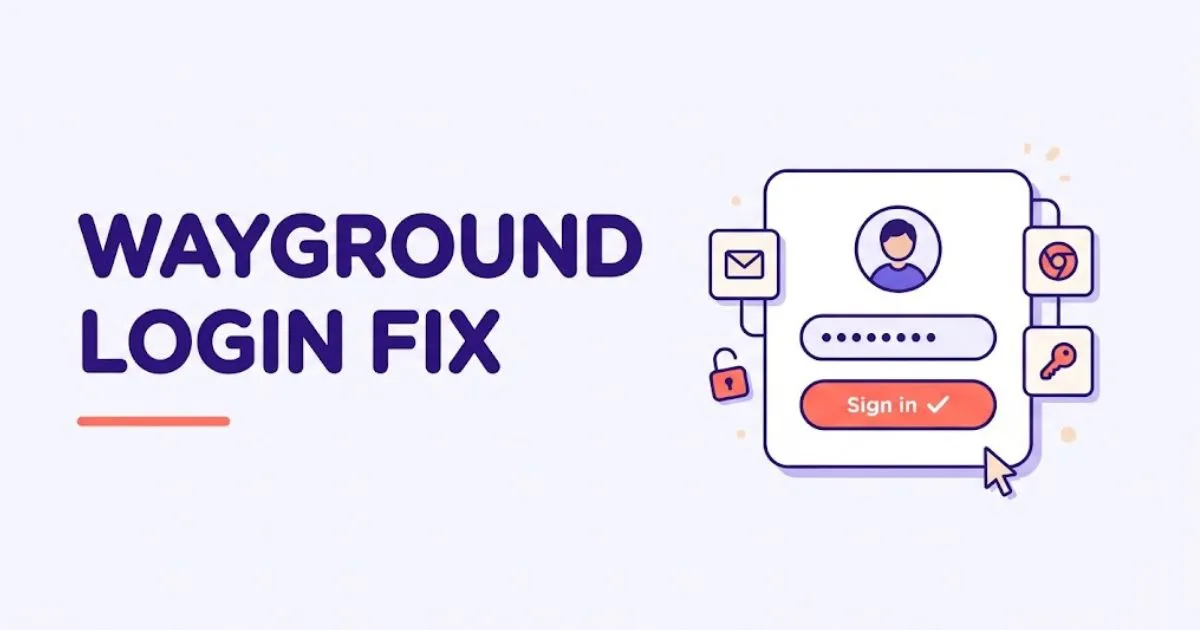
If your Wayground login is not working, first use the same sign-in method that originally created the account. A Google-based account must normally be opened through Google, while Microsoft, Clever, ClassLink, email, and phone users should select their matching option. If that fails, test a private browser window, reset the correct password, and contact your school administrator when managed SSO is involved.
Do not create another account as a quick fix. You may reach an empty dashboard instead of your saved quizzes, classes, and reports. This guide explains how to identify the right account, recover an email login, fix school SSO, and decide when the browser, network, or administrator is responsible.
Why is your Wayground login not working?
A Wayground login usually fails because the wrong sign-in method was selected, the password belongs to a different service, the browser session is corrupted, or a school-managed SSO connection is unavailable. Network filtering can also block the login page or authentication request. The error shown on screen helps identify which cause is most likely.
For example, entering a Gmail address in the email-and-password form can fail when Google originally created the account. In that case, select Continue with Google instead.
Another warning matters before troubleshooting: Wayground’s account documentation states that two accounts cannot be merged. Creating a second profile can therefore separate new work from the classes and content stored in the original account.
In my review of the current support flow, checking the identity provider first is the safest move because it can solve the problem without changing passwords, deleting cookies, or creating duplicate data.
How do you fix a Wayground login that is not working?
Fix the problem in a controlled order: confirm the official page, identify the original login method, test the credentials with their provider, and then check the browser and network. Change one variable at a time so you know what worked. Save the exact error message before refreshing because it may disappear afterward.
- Open the official login page. Go to wayground.com/login and avoid unofficial pages that request credentials.
- Choose the original sign-in method. Select Google, Microsoft, Clever, ClassLink, email, or phone according to how the account was created. Wayground’s official login guide confirms that SSO, phone, and email options are available.
- Check which school account is active. If several Google or Microsoft accounts are open in the browser, sign out of the unrelated ones or use a private window. Then choose the school identity linked to Wayground.
- Reset an email password when necessary. Open Wayground’s forgot-password page, enter the registered email address, and request a reset link. Check spam, junk, and school quarantine folders if the message does not appear.
- Reset SSO credentials with the provider. If you use Google, Microsoft, Clever, or ClassLink, the password is generally managed by that provider or your school—not by the standard Wayground password form. Use the provider’s recovery process or contact the school account administrator.
- Test a private window. If login works there, stale cookies, an extension, or cached data may be interfering.
- Update the browser. Wayground supports modern Chrome, Safari, Firefox, and Edge browsers, with Chrome recommended in its connectivity guidance.
- Compare another device or network. If login works elsewhere but not on school Wi-Fi, report that result to authorized IT staff.
- Escalate with evidence. Record the account email, login option, device, browser, error, screenshot, and steps attempted. Never include passwords.
Which fix matches your Wayground login error?
Match the symptom to the likely owner of the problem. A missing reset email points toward the address, mail filter, or email-based account; an SSO error often belongs with the school identity provider. An empty dashboard usually signals the wrong account, while a page that fails only on school Wi-Fi suggests filtering or firewall restrictions.
| Login symptom | Likely cause | Best first fix | Who handles it next? |
|---|---|---|---|
| Password is rejected | Wrong password or wrong sign-in method | Confirm whether the account uses email or SSO | User or identity provider |
| Reset email never arrives | Wrong address, spam filter, or SSO-based account | Check folders and confirm how the account was created | User or school email admin |
| Google or Microsoft opens an empty dashboard | Wrong Google/Microsoft identity or duplicate account | Sign out and select the original school account | User, then Wayground Support |
| Clever login does not redirect | Wayground app is not integrated or accessible | Open it through the correct Clever portal | Teacher or district administrator |
| ClassLink app is missing | App was not added or assigned | Check the ClassLink library or school portal | User or ClassLink administrator |
| Login works at home but not at school | Firewall or content filtering | Report the network comparison to school IT | Network administrator |
| Login page loops or stays blank | Cookies, cache, extension, or browser issue | Test private browsing and an updated browser | User, then IT |
Google and Microsoft users should choose the matching provider and complete any one-time details requested on first login. Wayground publishes separate Google SSO and Microsoft SSO instructions.
Clever requires the Wayground app to be integrated with the portal by a teacher or district administrator. ClassLink access may begin in its library or on Wayground, depending on the school’s setup.
What login mistakes should you avoid?
The most damaging mistakes are creating duplicate accounts, resetting the wrong password, sharing credentials, and bypassing school security controls. Another common mistake is clearing every browser setting before recording the error. Start with reversible checks, protect existing content, and involve the correct administrator when Google, Microsoft, Clever, or ClassLink manages access.
- Do not create a new account immediately. First locate the original login method and email address.
- Do not use the Wayground reset form for every SSO problem. Google, Microsoft, Clever, or ClassLink may control the credentials.
- Do not share passwords with teachers, classmates, or support agents. Send screenshots with sensitive details hidden.
- Do not change managed-device or firewall settings yourself. Give the evidence to authorized school IT staff.
- Do not clear cookies before saving work. Clearing them can sign you out of other school tools.
- Do not confuse usernames with login emails. Wayground explains that the public username can differ from the email used to sign in.
When the correct account still fails across browsers, devices, and networks, use our Wayground Help hub or contact official support. Wayground lists support@wayground.com and a request form on its contact page.
Frequently asked questions:
These answers cover the most common recovery questions from teachers and students. The key distinction is whether Wayground itself manages the password or the account uses an external identity provider. Check that first, because it determines which reset page, administrator, or support team can actually restore access.
Why does Wayground say my password is incorrect?
You may have entered an old password or used the email form for an account created through Google, Microsoft, Clever, or ClassLink. Return to the login page and select the original sign-in method before requesting a password reset.
How do I reset my Wayground password?
For an email-based account, use the official forgot-password page and open the link sent to the registered address. If the account uses school SSO, reset the password through that provider or ask your school’s account administrator for assistance.
Why am I logged in but my quizzes are missing?
You probably opened another account or selected the wrong Google or Microsoft identity. Sign out, choose the original login method, and check the account email. Avoid adding new content until you confirm that the correct dashboard is open.
Why is Clever or ClassLink login not working?
The Wayground application may not be integrated, assigned, or visible in your school’s portal. Try the school’s approved portal route first. If the app remains unavailable, a teacher, Clever administrator, ClassLink administrator, or district IT team must check access.
Can I merge two Wayground accounts?
Wayground’s official account documentation says it does not allow two accounts to be merged. Before creating another profile, contact support about the original account and keep a record of the email address and sign-in method that holds your content.
How do you regain access without losing your work?
Return to the official login page and select the method that originally created the account. Test the correct school identity, recover the password through its actual provider, and use private browsing only as a diagnostic step. Avoid duplicate accounts because Wayground says they cannot be merged.
If the issue affects only the school network or managed SSO, send the evidence to the appropriate administrator. For a wider technical problem, continue with our common Wayground errors guide or contact official support with a screenshot, browser details, and the steps you already tried.
Content goal: Help users recover the correct Wayground account without losing access to saved classes, activities, assignments, or reports.
Independent editorial note: Wayground.it.com is an independent guide and is not operated by or affiliated with Wayground or Quizizz. Login methods and troubleshooting steps were checked against Wayground’s official documentation on September 11, 2026.




Pingback: Wayground Code Not Working? Complete Fix Guide
Pingback: Common Wayground Errors: Complete Fix Guide