

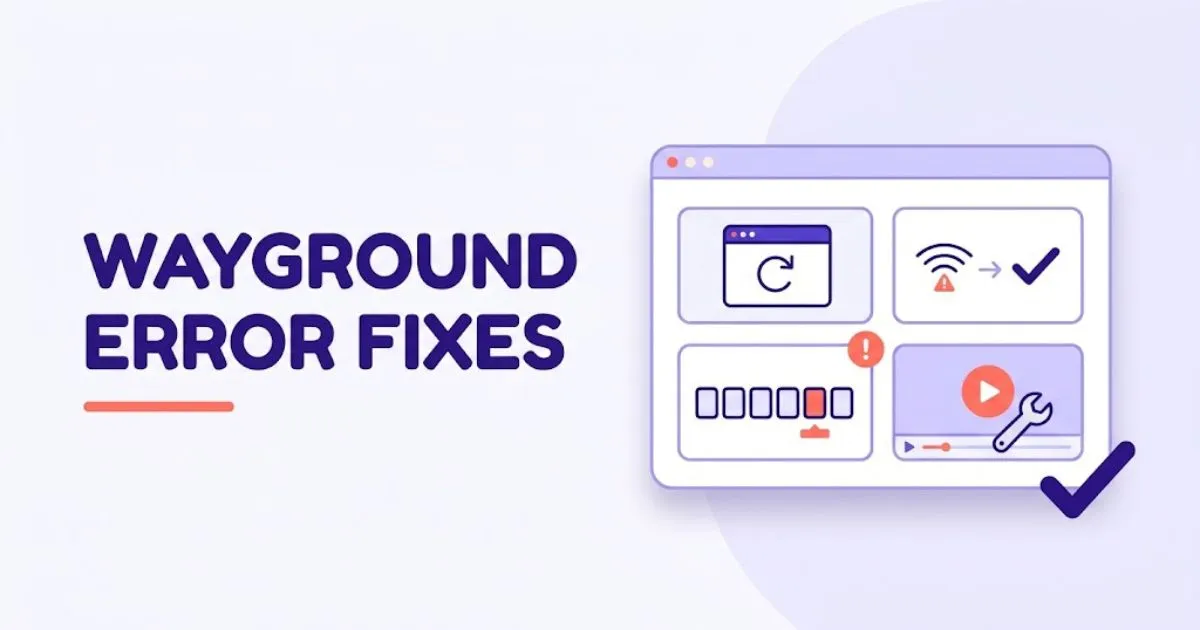
Most common Wayground errors can be traced to the browser, network, account, session, or external service being used. Start by recording the exact symptom, then test an updated browser, private window, different device, and permitted alternate network. If the whole class is affected, check the host session and school network before troubleshooting every student separately.
This guide covers blank pages, slow loading, session disconnections, missing images, invalid codes, login loops, LMS failures, unavailable videos, and mobile-app crashes. It also shows which fixes users can try safely and which require a teacher or school administrator.
What are the most common Wayground errors?
The most common errors include pages that will not load, live sessions that disconnect, rejected codes, failed logins, missing images, blocked videos, LMS activities that do not open, and mobile apps that crash. The same symptom can have several causes, so first determine whether it affects one user, one activity, or the entire school network.
Wayground’s official connectivity guide identifies four recurring technical causes: firewall configuration, browser cache or cookies, internet connectivity, and an outdated browser. Check those before changing managed-device settings.
Use the scope of the problem as your first clue:
- One student: Check the code, account, browser, and device.
- One activity: Check its session, media, settings, and link.
- The whole class: Check the host dashboard, bandwidth, firewall, and Wi-Fi.
- Only an LMS: Check the school identity, integration, and third-party cookies.
For example, if images disappear on school Wi-Fi but load through another permitted connection, the content may be fine. Wayground says firewalls can block platform access, Google Classroom joining, or images. Give that comparison to school IT.
How do you troubleshoot common Wayground errors?
Troubleshoot in a fixed order: capture the error, check the session or account, reload safely, test the browser, and compare another device or network. Change only one variable at a time. This method protects saved work and reveals whether the problem belongs to Wayground, an external service, or the school’s technology environment.
- Record the symptom. Save the message, time, page, activity, and a screenshot with private details hidden.
- Check who is affected. A single-user failure suggests the account or device; a class-wide failure suggests the host or network.
- Confirm the session and account. Make sure the host has not ended the activity and the user opened the correct school account. Follow our code troubleshooting or login troubleshooting guide when one of those symptoms is isolated.
- Reload safely. Save unfinished edits, close duplicate tabs, and reload before clearing browser data.
- Test a private window. If it works, a cookie, cache file, or extension may be interfering.
- Update the browser. Wayground recommends Chrome and also lists Safari, Firefox, and Edge.
- Compare another device or network. If the task works elsewhere, document the difference. A school-network-only failure should go to authorized IT staff for firewall or safelist review.
- Check external services. Google Classroom, Canvas, Schoology, YouTube, and identity providers can fail independently. Confirm whether the same external service works outside Wayground.
- Escalate with evidence. Send the account email, device, operating system, browser version, network, screenshot, and reproduction steps. Never share passwords or unnecessary student information.
Which fix matches your Wayground error?
Match the symptom to its likely source instead of applying every fix at once. Blank pages often point to browser data or filtering, while invalid codes depend on the host session. Media errors may come from YouTube restrictions or a removed video. LMS failures frequently involve the school account, integration permissions, or third-party cookies.
| Error or symptom | Likely cause | Best first fix | Who acts next? |
|---|---|---|---|
| Page stays blank or loads partly | Cache, extension, firewall, or blocked scripts | Test a private window and another network | User, then school IT |
| Live session disconnects | Unstable Wi-Fi or insufficient bandwidth | Close unused tabs and test the connection | Teacher or network admin |
| Images do not appear | Media domain blocked by school filtering | Compare another network and run the network check | School IT |
| Google Classroom or LMS will not open | Wrong identity, blocked cookies, or integration permission | Sign in to the assigned account and check cookies | Teacher or LMS admin |
| YouTube video will not play | YouTube is restricted or the video was removed | Test the video separately and ask the network admin | Teacher or school IT |
| iOS application crashes | Outdated application version | Update the Wayground app | User or device admin |
| Quiz editing controls are missing on mobile | Unsupported authoring workflow | Create or edit on a desktop or laptop | Teacher |
For network errors, Wayground provides a diagnostic check and publishes domains that may require safelisting. Its official guide says to test both teacher and student devices. Only administrators should change firewall, WebSocket, cookie, or organizational-unit policies.
Wayground’s technical information recommends over 15 Mbps for about 30 students and over 90 Mbps for 100. These are guidelines because Wi-Fi coverage and other traffic affect performance.
Wayground says blocked third-party cookies can stop the Google Classroom Add-on and may affect LMS integrations on Safari or certain browsers. Review the official cookie instructions with an administrator.
For video errors, check whether every video fails or only one. YouTube may be restricted, or a specific video may have been removed. For iOS crashes, Wayground’s first fix is updating the app.
What troubleshooting mistakes should you avoid?
Avoid changing several settings simultaneously, deleting accounts, bypassing school security, and clearing browser data before saving work. Another mistake is treating an external-service failure as a Wayground error. A controlled test across the browser, device, network, account, and activity produces evidence that the correct person can use to resolve the problem.
- Do not create a replacement account immediately. It may separate you from existing classes, quizzes, and reports.
- Do not clear cookies before saving work. You may be signed out of other school platforms.
- Do not change firewall or managed-browser policies yourself. Send the evidence to school IT.
- Do not keep retrying a removed YouTube video. The teacher must replace the unavailable source.
- Do not include passwords or student records in support messages. Redact screenshots first.
In my review of the official support material, scope is the best shortcut. Start locally for one student; inspect the host and shared network when the whole class fails. Password resets will not repair a blocked domain or unstable Wi-Fi.
If an error continues across browsers, devices, accounts, and networks, use the Wayground Help pillar and official support. The Help Center lists support@wayground.com and reports a median response under six hours for human-reviewed tickets—not a guarantee.
Frequently asked questions
These answers address common technical questions from teachers and students. Begin with the scope of the failure and apply the least disruptive fix. When a managed school account, LMS, firewall, or device is involved, document what you tested and contact the authorized administrator instead of changing security policies yourself.
Why is Wayground not loading?
Wayground may not load because of cached files, blocked cookies, an extension, outdated browser, weak connection, or school firewall. Try a private window and updated browser, then compare another permitted network before clearing data or contacting school IT.
Why does Wayground keep disconnecting?
Frequent disconnections usually point to unstable internet, Wi-Fi congestion, or insufficient bandwidth. Close unused tabs, move to a stronger access point, and test another device. If the whole class disconnects, the teacher or network administrator should investigate.
Why are images or videos missing in Wayground?
School filtering may block Wayground media domains or YouTube. A specific YouTube video may also have been removed by its uploader. Compare another approved connection and test the source separately, then report the result to the teacher or administrator.
Why will Wayground not open through my LMS?
The wrong school account, missing integration permission, or blocked third-party cookies may prevent access. Sign in to the LMS identity assigned by your school. On managed devices, ask the LMS or browser administrator to review cookies and integration settings.
How do I report a Wayground error?
Contact official support with the account email, error message, screenshot, time, activity, device, operating system, browser version, network, and steps already attempted. Remove student information and never send your password or other authentication credentials.
How should you handle a Wayground error?
Record the symptom, determine who is affected, and test the session, account, browser, device, and network in that order. Use the result to involve the correct owner: the student for a local browser issue, the teacher for a session problem, or school IT for managed technology.
For focused help, continue with our Wayground login not working, Wayground code not working, or How to Join Wayground guides. Escalate only after collecting enough detail to reproduce the error.
Independent editorial note: Wayground.it.com is an independent guide and is not operated by or affiliated with Wayground or Quizizz. Technical details were checked against Wayground’s official documentation on September 11, 2026.




Pingback: Wayground Login Not Working? Complete Fix Guide - wayground.it.com