
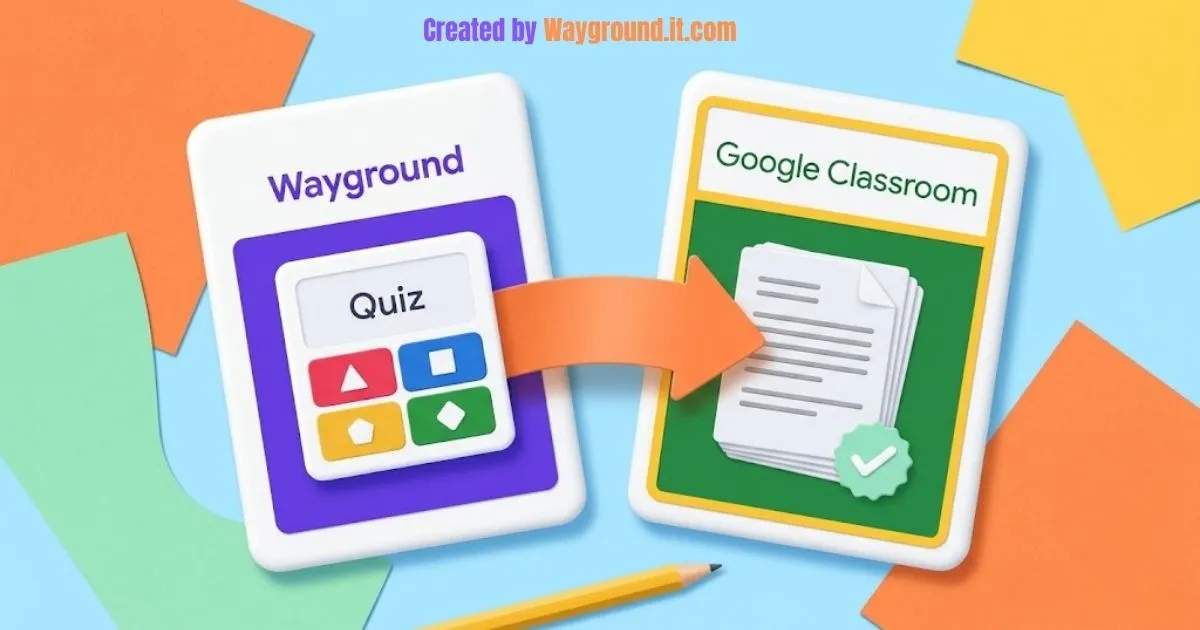
To connect Wayground to Google Classroom, open Classes in Wayground, choose Google Classroom, and authorize your school Google account. Import the class, then select it when assigning an activity. Automatic grade syncing is a separate feature that Wayground lists for School and District plans. Official integration overview.
That distinction matters. Posting an activity where students can find it does not necessarily connect its results to your gradebook.
This independent guide explains setup, assignment sharing, grade checks, and common access problems. It covers Wayground, formerly Quizizz, using current official documentation.
What does the Wayground Google Classroom integration include?
The integration connects class organization, activity delivery, and, on eligible plans, grades. Teachers can assign work to imported classes, and students open it from Classroom. However, the available features depend on the Wayground subscription, so confirm which functions your account includes before planning a workflow around automatic updates.
Wayground’s published integration table distinguishes these features:
| Feature | Basic and Super plans | School and District plans |
|---|---|---|
| Assign activities through Classroom | Included | Included |
| Sync class lists | Listed; confirm account availability | Included |
| View detailed imported student rosters | Not included | Included |
| Automatically send grades to Classroom | Not included | Included |
Source: Wayground’s integration feature table.
Class-import availability needs checking. The table includes class-list syncing on Basic, but the separate import tutorial names Super or School/District as prerequisites. If your account does not offer import, confirm availability with support rather than assuming the connection is broken. Import requirements.
Before starting, have your school Google account, an existing Classroom class, and a published Wayground activity ready. Our complete Wayground guide covers the platform basics if you are setting up your first lesson.
How do you connect the platforms and share an assignment?
Connect the Google account that contains your teaching classes, import the class you need, and select that imported class when assigning work. Then check the resulting Classroom post. Start with one class and one short activity so you can confirm the setup before using it across several sections.
Connect your teaching account
- Sign in to Wayground and open Classes.
- Select Google Classroom from the import options.
- Choose the school Google account associated with your classes.
- Review and grant the requested access, subject to your school’s app permissions.
- Select Google Classroom again if prompted.
- Choose the classes to import and select Next.
Open the imported class to confirm that it is the correct section. These steps follow Wayground’s class-import instructions.
Assign a Wayground activity
- Open your assessment or lesson.
- Choose Start now for live play or Assign for homework.
- Select Select a class, then choose the imported Google class.
- Add a clear title and instructions; review the available settings.
- Confirm Start or Assign, then check the post in Classroom.
Students open the assignment to reach its activity link. See the official assignment instructions and our homework setup guide for the broader assignment workflow.
Share a link without importing a class
If you only need to distribute an activity link:
- Copy the student link from your Wayground session.
- In Classroom, open Classwork → Create → Assignment.
- Add a title, instructions, and the session URL using Link.
- Review the recipients and publish the assignment.
Google documents the link-attachment workflow. Treat this as link sharing: attaching a URL alone does not configure roster matching or automatic grade transfer.
How should you check assignments and grades before using them regularly?
Check the entire assignment journey, not just whether the post appears. Confirm that students can open the correct activity, their work appears under the expected identity, and any transferred grade uses the intended scale. A short practice task lets you resolve these issues before an assessment affects report-card grades.
Start with a low-stakes practice task
I recommend using familiar content for the first linked activity. That makes it easier to separate a technical problem from a question students simply found difficult.
For an elementary math review, these three original questions provide a small, usable check:
- What is 6 × 7? Answer: 42.
- Which fraction equals 1/2: 2/4, 1/3, or 3/4? Answer: 2/4.
- A rectangle measures 5 units by 3 units. What is its area? Answer: 15 square units.
Name the assignment Math Review — Practice and state whether it counts toward a grade. Ask students to open it from Classroom while you are available to help.

Afterward, check these details:
- Access: Students reached the intended session.
- Identity: You can match participants to your class.
- Completion: Finished work appears in the activity report.
- Grade transfer: If your plan supports it, the intended assignment contains the result.
Compare the right numbers
Wayground sends accuracy points, rather than game leaderboard scores, to supported LMS reports. Power-ups can affect game scores without changing accuracy points, so a leaderboard total is the wrong number to compare with Classroom. Accuracy and score documentation.
Also check the maximum points. Google says manually created assignments default to 100 points; that does not establish the scale of every imported activity. Mathematically, 8/10 and 80/100 express the same percentage, while 8/100 does not. Classroom assignment settings.
For eligible linked activities, Wayground documents viewing results through the assignment under Classwork. Use our Wayground reports guide to inspect the underlying responses before deciding what to reteach.
Why might classes, student access, or grades fail to sync?
Start by identifying what failed: the class import, the student’s access, or the grade transfer. These involve different settings. Check the signed-in account, roster membership, assignment connection, and subscription before recreating anything. If Google displays an administrator restriction, your school’s Workspace administrator needs to review the app’s access.
A class or student is missing
Confirm that you authorized the account containing the class. For a newly enrolled student, add them to Google Classroom first, then open the imported class in Wayground and select Refresh Roster. Official roster-refresh instructions.
A student sees an access restriction
Students designated as under 18 cannot access unconfigured third-party apps through their school Google accounts. Google provides a process for teachers to request app access from their administrator. Share the exact error with school IT; switching to a personal account is not a reliable solution. Google’s student app-access guidance.
For an ordinary sign-in problem without an administrator message, follow our Wayground login troubleshooting guide.
The activity appears, but the grade does not
Check your plan first: posting an assignment does not prove that automatic grade transfer is included. Then confirm that you assigned the activity to the imported class rather than only pasting its link into a separate post. Grade-sync availability.
Keep the activity report and assignment link available when requesting support. Our Wayground help guide covers broader browser and connection checks.
What else do teachers ask about this integration?
Teachers often want to know whether the connection is free, whether students need accounts, and whether live games work through Classroom. The key is to distinguish basic sharing from connected class features. Check which workflow you are using before applying advice about joining, access, or grade transfer.
Is the Google Classroom integration free?
Wayground lists assignment sharing on Basic and Super, while automatic grade syncing requires School or District access. Class-list syncing appears in its Basic feature table, but the import tutorial differs; confirm the options available in your account.
Do students need Wayground accounts for imported classes?
Yes. Wayground’s import guide says students without an account must sign up when they first join the imported class or start an activity. This differs from joining some open games with only a code and name.
Can I use Google Classroom for live Wayground games?
Yes. Wayground’s assignment guide includes a Start now option for live activities assigned to an imported Google class. Students access the activity through the assignment link, while you manage the live session on Wayground as usual.
Can I send selected students a reminder to try again?
School and District users can use Nudge to Reattempt for eligible homework assigned through Classroom. Select students from the session report; the reminder appears in their Classroom Stream. Attempt limits still apply. Nudge instructions.
Will changing the leaderboard score change the Classroom grade?
Leaderboard scores are not the values Wayground syncs to an LMS. Accuracy points are the relevant measure. When checking a grade, compare the student’s assessment points and the assignment’s maximum rather than their game rank or bonus score.
Connect one class before expanding
Import one teaching section, share a short practice activity, and check access and results. Once the workflow is clear, reuse it across your classes. Build your next activity with our step-by-step quiz creation guide.