
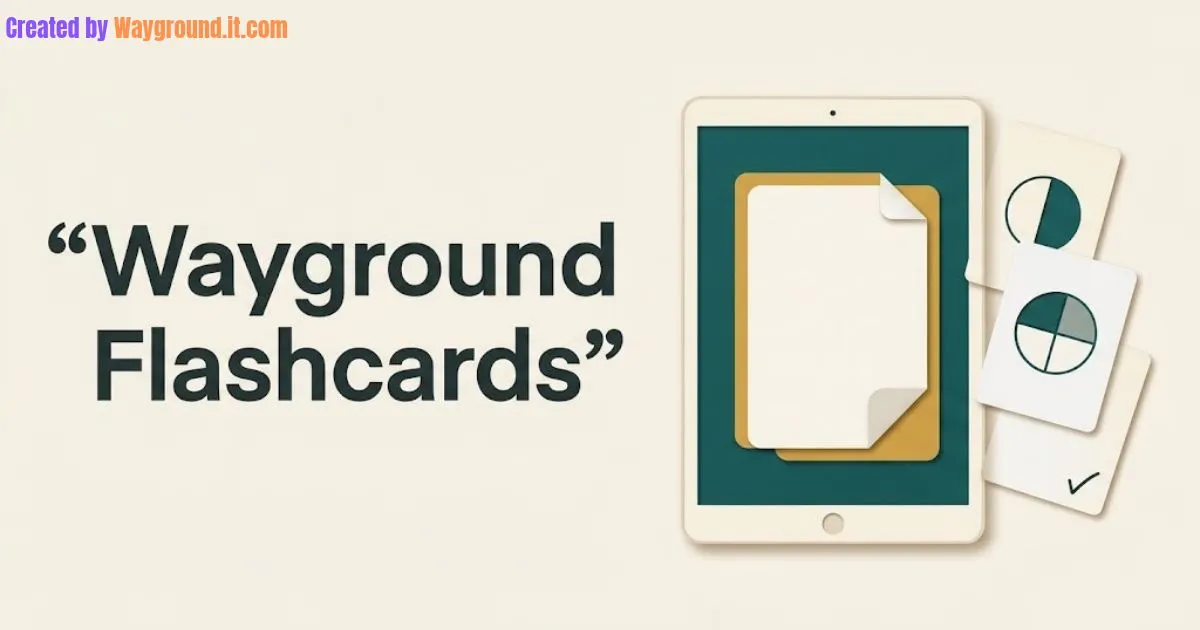
Wayground flashcards let teachers create digital study cards, lead a classroom review, or assign independent practice. Students reveal each answer and, during homework practice, mark what they know and what needs more work.
The useful part is the routine around the cards: recalling an answer, checking it, and returning to difficult material. Simply clicking through a set tells you much less.
This independent guide explains setup, teaching choices, and progress checks. It also includes a ready-to-use fractions example. Wayground was previously called Quizizz.
What are Wayground flashcards, and when should you use them?
Flashcards pair a prompt with information students reveal afterward. Use them for vocabulary, formulas, short explanations, or reviewing previously taught concepts. They fit brief practice sessions especially well, but they should support instruction and assessment rather than serve as your only evidence that students understand a topic.
During independent practice, students choose I know or I’m learning after revealing an answer. That makes honest self-checking part of the activity. Wayground explains these controls in its student flashcards guide.
Choose the format around your lesson goal:
| Format | Best classroom use | What to check afterward |
|---|---|---|
| Live flashcards | Introduce or discuss key ideas together | Can students explain an answer aloud? |
| Assigned flashcards | Independent review outside the lesson | Did students complete the set and identify difficulties? |
| Assessment/quiz | Check answers to specific questions | Which responses reveal a misconception? |
Wayground’s free Starter plan lists flashcards among its resource formats. It also lists a 20-resource storage limit, with some features and limits varying by region; check your account before planning a large collection. See the Starter plan documentation.
For the broader workflow, start with our complete guide to using Wayground.
How do you create and assign a flashcard set?
Start with a small set focused on one learning goal, then choose how students will use it. Create the cards, check both sides, and publish the resource before sharing it. Use a live session for guided discussion or an assignment when students need independent practice outside class.
Create the cards
- Sign in to your teacher account and select Create → Flashcards.
- Choose Create from scratch.
- Enter the prompt on the front and its answer on the back.
- Select Save Flashcard, then + Add Flashcard for the next card.
- Review the set and select Publish.
To reuse an assessment, open it and choose Wayground AI Actions → Generate Flashcards. Review the conversion, edit as needed, and select Copy & Save. These paths follow Wayground’s flashcard creation instructions.
Check every generated card against your teaching material. A correct definition can still be too broad for the lesson, and a converted multiple-choice question may need rewriting to work without its answer options.
Run a live review
- Open the published set and select Start now.
- Adjust the session settings and select Start.
- Share the session code or link.
Model the first card before continuing: read the prompt, pause for students to respond, then reveal and discuss the answer. Wayground also documents a student-paced option within live flashcard sessions. See the live participation instructions.
Assign independent practice
- Open the set and choose Assign.
- Review the settings; enable Shuffle flashcards if appropriate.
- Confirm Assign and share the generated link or code.
- Open the activity report afterward to check completion.
Wayground documents these steps in its hosting and assignment guide. Our homework mode guide explains the wider assignment workflow.
Students can enter the shared code at the official join page or use your link. Send our student joining instructions to families who need help getting started.
Find the results
Current documentation places reports under Sessions; older flashcard instructions refer to Reports. Open the relevant activity and inspect the available completion information. Our Wayground reports guide covers report navigation and interpreting assessment results separately. Official report navigation.
How can you turn flashcards into useful classroom practice?
Ask students to produce an answer before they reveal it, then check the reasoning behind that answer. Keep each card focused, revisit the material on another day, and finish with a question that uses the idea differently. This gives the practice a clear purpose beyond completing the set.
A ready-to-use fractions mini-set
Here are three original cards for an elementary fractions lesson:
- Card 1 front: What fraction is equivalent to 1/2 and has a denominator of 8? Back: 4/8. Multiply the numerator and denominator by 4.
- Card 2 front: Explain why 2/3 equals 4/6. Back: Each third can be split into two equal sixths, so two thirds cover four sixths of the same whole.
- Card 3 front: Which is greater, 1/4 or 1/8, when the wholes are equal? Back: 1/4. Dividing the same whole into fewer equal parts makes each part larger.
The third card checks a common point of confusion: a larger denominator does not automatically mean a larger fraction. Ask students to draw both fractions before looking at the answer.
I recommend including both recall and explanation cards. A student who remembers “multiply top and bottom” should also be able to explain why the value stays unchanged.
Use the set more than once
- During the lesson: Model one card and discuss the explanation.
- The next day: Ask students to work independently and write answers before revealing them.
- Later in the week: Give a fresh question, such as finding an equivalent fraction for 3/5 with a denominator of 20.
This schedule is a suggested teaching routine, not a built-in automatic review schedule. Adjust the timing to your class.
The U.S. Institute of Education Sciences recommends spreading learning over time and using quizzes that require active recall. Its practice guide supports these teaching principles; it does not establish that this particular platform produces a guaranteed learning gain. IES study and instruction guide.
Which mistakes should you avoid when using flashcards?
The main mistakes are revealing answers too quickly, packing several ideas onto one card, and treating self-reported confidence as a test result. Make the expected response clear before practice begins. Then check understanding with a separate explanation or question, especially when the work will inform grades or intervention.
Do not equate confidence with accuracy. Students make the selections that inform their flashcard confidence summary. My recommendation is to use that summary as a conversation starter, then verify understanding with an independent response. The student experience documentation describes the self-checking process.
Avoid vague prompts. Replace “Fractions” with a specific task such as “Explain why 3/4 equals 6/8.” Students should know what a complete answer requires.
Do not grade speed through the deck. Give students time to write, sketch, or explain before flipping. Fast completion alone does not show the reasoning you want to assess.
Prepare an option for students without reliable device access. Published flashcard resources can be opened with Worksheet and exported through Print/Download. Check the preview before distributing copies. Official printing instructions.
What else do teachers ask about Wayground flashcards?
Teachers commonly ask about free access, converting quizzes, printing, student review, and interpreting results. The answers below separate the study features from assessment evidence. Check account-specific availability before assigning work, and explain to students whether the activity is preparation, optional review, or something you will assess separately.
Are Wayground flashcards free?
The free Starter plan includes flashcards in its listed resource formats. However, availability and some limits vary by region, and the plan lists a 20-resource storage allowance. Check the features shown in your account before building a large library.
Can I turn an existing quiz into flashcards?
Yes. Open the assessment and use Generate Flashcards under Wayground AI Actions. Review the resulting cards, edit any unclear prompts or answers, and save the set. Conversion gives you a draft that still needs a teacher’s review.
Can students review a completed activity as flashcards?
Yes. Signed-in students can open Activity, select Completed, choose a session, and select Flashcards. Wayground documents Practice and Pre-read options for this review route, so students can revisit previously completed work. Completed-session instructions.
Can I print a flashcard set?
Yes. Open the published resource and select Worksheet, then use Print/Download. Inspect the layout first so prompts and answers suit your intended activity. A printed worksheet is useful when students need practice without an individual device.
Does completing flashcards prove a student has mastered the topic?
No. Completion shows participation, while confidence reflects students’ own judgments during practice. Ask for an explanation or a fresh answer without revealing the solution. Use that additional evidence when deciding whether a student needs reteaching or more practice.
Start with one focused set
Choose a concept your class has already studied. Create a few clear cards, model answering before flipping, and follow the practice with a fresh question. When you need that final check, our quiz creation guide walks through building an assessment.