
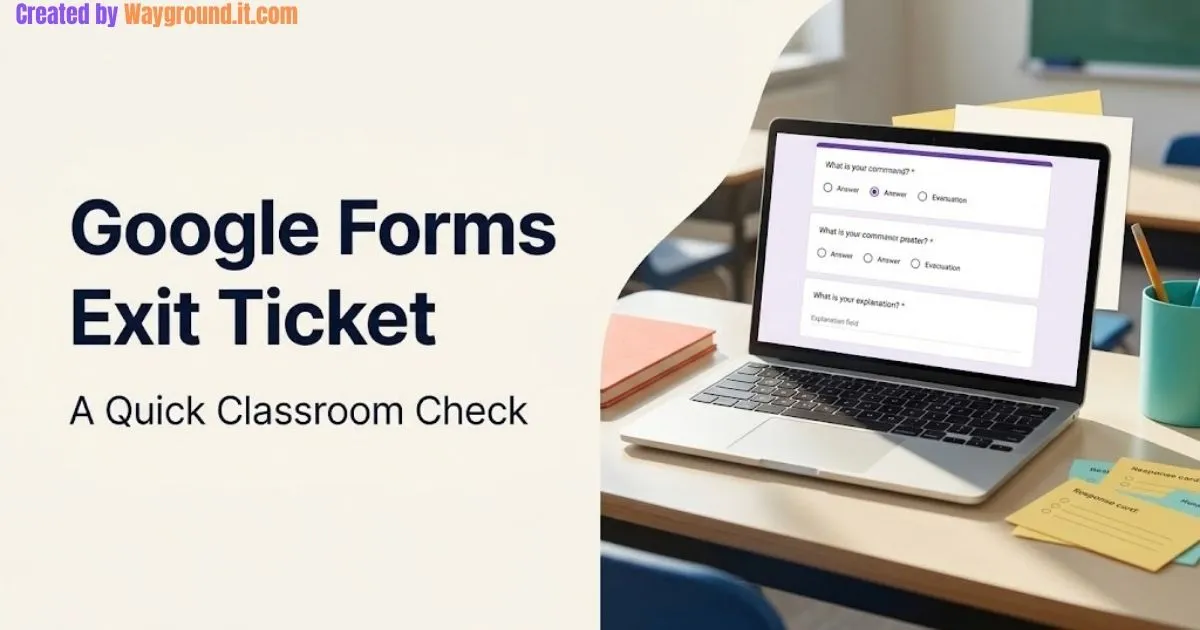
To create a Google Forms exit ticket, start a blank form, add a focused learning question and a short explanation prompt, check access settings, then publish and share the responder link. Review the answers before the next lesson and choose what to reteach, clarify, or extend.
This independent guide covers the form settings, a ready-to-copy question set, and a practical routine for using the responses in a K–12 classroom.
What should a Google Forms exit ticket include?
An exit ticket should ask students to demonstrate the lesson’s main learning goal and reveal something about their reasoning. A question plus a brief explanation is often enough. Add a student identifier when individual follow-up matters, and use a confidence question only as supporting information rather than proof of understanding.
Start with the decision you need to make tomorrow. If you are unsure whether students can compare fractions, ask them to compare fractions; “Did you enjoy the lesson?” answers a different question.
| Question format | Useful purpose | Main limitation |
|---|---|---|
| Multiple choice | A quick choice among plausible answers | A correct selection can hide guessing |
| Short answer | A calculation, term, or brief response | Short wording may leave reasoning unclear |
| Paragraph | An explanation or justification | Takes longer to read |
| Linear scale | Confidence or perceived difficulty | Self-report is not a demonstration of skill |
These formats are available in Google’s question-type options. Choose the response format that fits the evidence you need, rather than adding one of everything.
For the teaching distinction behind this routine, see formative vs summative assessment. An exit ticket becomes useful when its results inform a next step, not simply because students submit it before leaving.
How do you create and share an exit ticket?
Build a short form, decide whether scoring is necessary, and test the student-facing version before class. Then publish it for the intended audience and share the responder link. Keep a paper version of the same question available so a sign-in or connection problem does not prevent a student from showing understanding.
1. Open a blank form and name it clearly
Visit Google Forms using your school-approved account, choose Blank form, and enter a specific title such as “Period 3 — Comparing Fractions — Exit Ticket.” Google documents this starting sequence in its form creation guide.
In the description, explain the task: “Answer independently. Explain your choice so I can plan our next lesson.”
2. Add the questions you actually need
Use Add question, then select the question type. Turn on Required for essential responses; Google’s question settings guide explains these controls.
3. Decide whether to make it a quiz
For an unscored reflection, leave it as a regular form. For answer keys and points, open Settings and enable Make this a quiz.
Use Answer key on supported questions to set correct answers and points. If explanations need checking, consider Later, after manual review under grade release; Google’s quiz instructions cover these options.
4. Check the settings students will encounter
Limit to 1 response requires Google sign-in. Also check email collection separately; limiting submissions does not itself record usernames.
Leave View results summary off for ordinary individual exit tickets. When enabled, that setting can expose written responses and charts to people who can respond. These behaviors are documented in Google’s publishing and sharing guide.
5. Publish and test the responder link
Click Publish, use Manage to check the permitted audience, and complete publishing. Copy the responder link, not the editing address, and post it in your class’s usual channel.
Test with an authorized student-view account if available. A form that opens for its owner may still be inaccessible to students; unpublished forms cannot receive their responses even when they have the link. Follow the current publishing steps.
What questions can you copy into your first form?
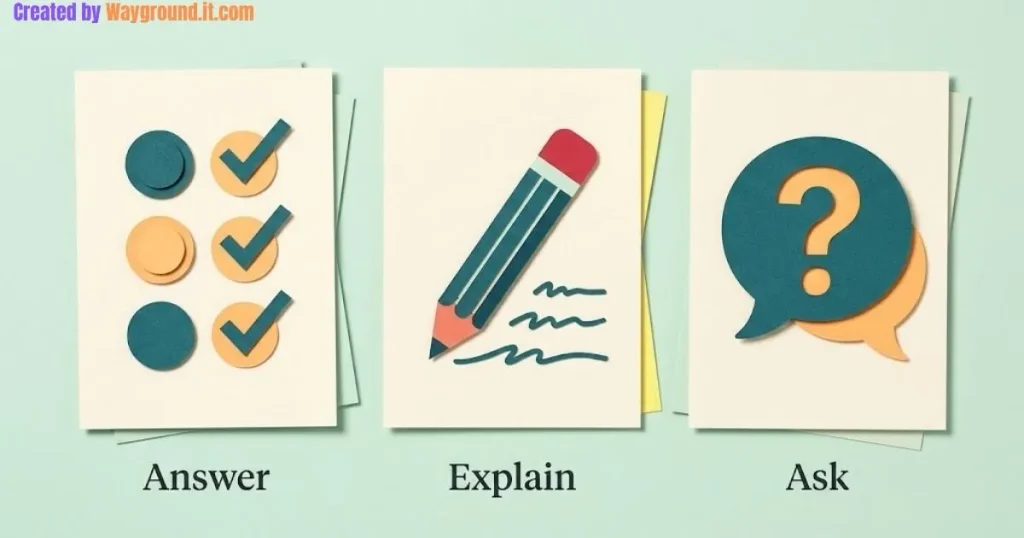
Use one content question, one explanation prompt, and an optional request for help. Keep all three connected to the same learning goal. The sample below checks fraction comparison through a selected answer and reasoning, giving you more to interpret than either a score or a confidence rating alone.
Form title: Comparing Fractions — Exit Ticket
Description: Work independently. Choose an answer and explain how you know. If you are unsure, tell me which step is difficult.
Question 1: Check the concept
Type: Multiple choice
Prompt: Which statement is correct?
- 3/4 is greater than 2/3.
- 2/3 is greater than 3/4.
- 3/4 and 2/3 are equal.
Correct answer: 3/4 is greater than 2/3.
Question 2: Ask for the reasoning
Type: Paragraph
Prompt: Explain your choice using a calculation, equivalent fractions, or a description of a fraction model.
A sound explanation could compare 9/12 and 8/12. Accept another valid method rather than requiring students to reproduce one sentence.
For a student who benefits from drawing, offer a paper response. Describing a diagram through typing may add difficulty unrelated to understanding fractions.
Question 3: Identify a useful follow-up
Type: Short answer; optional
Prompt: Which part would you like explained again?
To adapt the template for language arts, ask for an inference and a supporting detail. In science, ask for a prediction and the concept supporting it; keep the structure familiar while changing the content.
You can use this individual check after classroom review games without student devices, with paper responses for students who remain offline.
How do you review responses and fix common problems?
Review the class pattern first, then inspect explanations before deciding who needs help. Resolve access problems separately from learning problems: a missing submission may reflect a technical issue. Keep the follow-up specific, such as revisiting a comparison method, rather than treating every incorrect answer as the same misunderstanding.
Read both the summary and individual responses
Open Responses for the class overview, then Individual to read submissions. The summary becomes available after at least one response; see Google’s response-management guide.
For the fraction example, distinguish students who use a valid method from those who compare only the numerators. Give the second group another modeled comparison rather than repeating the definition of a fraction.
Use Sheets when it makes follow-up easier
In Responses, choose Link to Sheets. You can create a new spreadsheet or select an existing one as the response destination, following Google’s storage instructions.
Check access before changing the task
If students cannot open the form, confirm publication, the intended responder audience, and the account they are using. Keep school access requirements in place and resolve mismatches through the appropriate school account or administrator.
If a form reports that it is no longer accepting responses, open Published and check Accepting responses. Google describes this control in its response-management instructions.
Keep a clean version for the next lesson
Keep an unanswered master and make separate lesson copies as a practical filing routine. Change the topic and test the questions before sharing each copy.
Avoid deleting collected answers simply to tidy the screen. Google notes that deleting responses in Forms cannot be undone, and a linked spreadsheet is a separate file. Check what you need to retain before changing either location. Google response-storage guidance.
What do teachers ask about Google Forms exit tickets?
Most setup questions involve scoring, access, and how much information to collect. Make those choices around your teaching purpose and school account requirements. The answers below describe practical starting points; test the form students will actually receive instead of assuming that your editing view shows their experience accurately.
How many questions should an exit ticket have?
Start with one learning question and one explanation prompt. Add another only if its answer will change your next teaching step. Shorter forms leave more room for thoughtful responses, especially when students need time to read or type.
Does an exit ticket need automatic grading?
No. A regular form can collect the evidence you need. Automatic scoring is useful for some fixed-answer questions, but an explanation may require your judgment. Choose quiz mode only when answer keys or points serve the task.
Can students answer without signing in?
It depends on the form’s access and collection settings. Limiting submissions to one requires sign-in, and school restrictions may also apply. Check the published responder experience before promising account-free access, and provide an appropriate alternative when necessary.
Can I collect responses anonymously?
Check that you are not collecting email addresses or asking for names or identifying details. An unattributed check can reveal class patterns, but it will not support individual follow-up. Follow your school’s approach to student information.
What should I do in the next lesson?
Address one important pattern from the responses, then ask a fresh question checking the same concept. Explain the correction and give students time to apply it. Revisit the idea later rather than assuming one successful response proves lasting understanding.
Build the smallest form that answers your teaching question. Publish it, test access, and reserve time to read the reasoning. The useful result is a clearer next lesson, not simply a higher submission count.