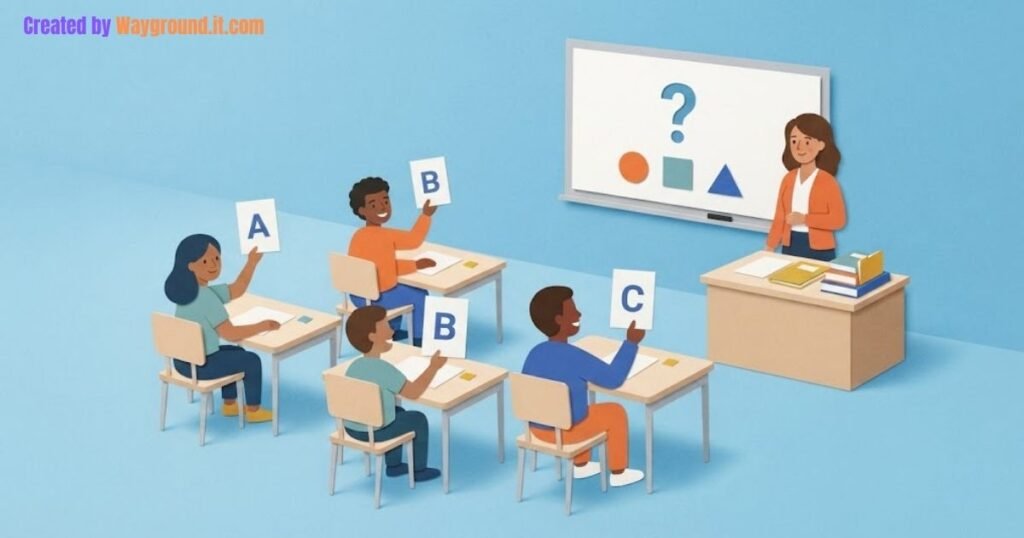

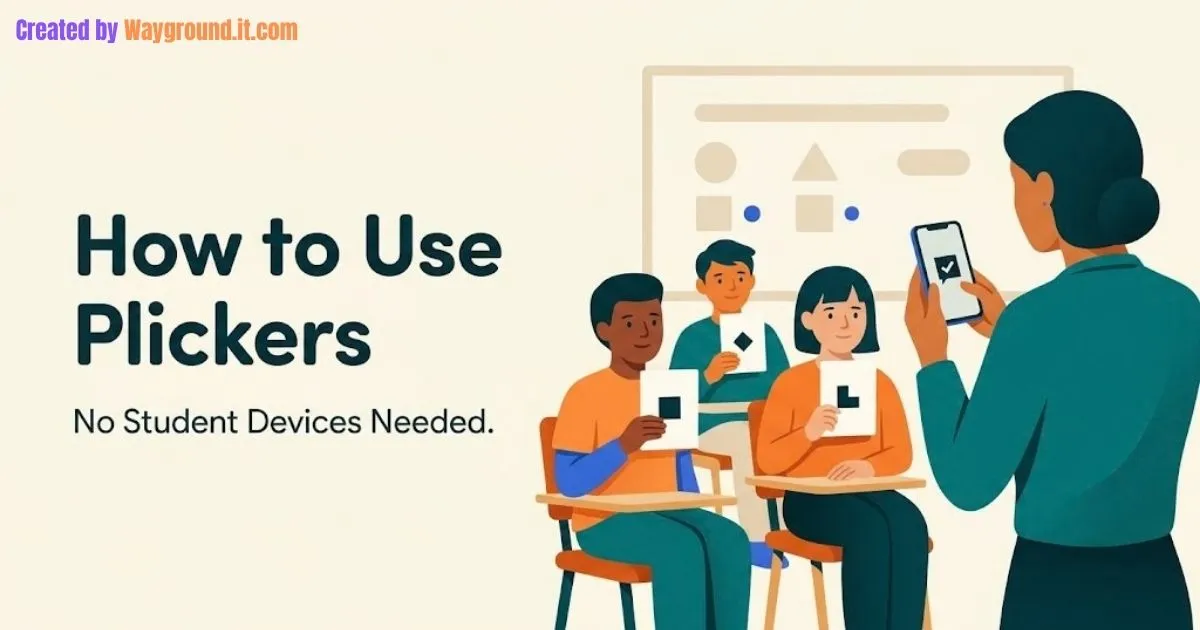
To use Plickers, create a teacher account, add your class, prepare questions, and give each student a numbered response card. Students rotate their cards to choose an answer, and you scan the room with the Plickers mobile app. For this in-person workflow, students need neither devices nor accounts.
It suits a quick check when the Chromebook cart is elsewhere or you want everyone answering the same question. This guide covers your first session, three copyable math questions, and what to check when a card will not scan.
What do you need before your first session?
Prepare a computer for creating questions, a phone or tablet with the Plickers app, and official printed cards. A projector or shared display lets students read the questions during an online session. Sign in to the same teacher account on your computer and mobile device.
The official Plickers overview explains how the website, app, and cards work together.
Each card has a unique pattern and a number linked to a student in your class roster. Its orientation communicates A, B, C, or D; it is not a normal QR code that students scan with their phones.
Download the cards through Get Plickers Cards. Use the supplied designs rather than creating your own codes.
Before entering a roster, follow your school’s approved-tool and student-data procedures. Not needing student accounts does not mean the teacher account holds no student information.
Is Plickers free, and what is the question limit?
The free version supports creating questions, printing cards, scanning answers, and viewing results. Its main content limit is five questions per Set, not five questions in your entire account. A Set is simply a group of questions, and you can create multiple Sets.
Plickers Pro removes the per-Set question limit and adds features such as expanded Scoresheet date ranges and private Pack sharing. The official plan FAQ lists these differences.
For a first attempt, prepare three focused questions. You can learn the scanning routine and leave time to discuss answers without needing a longer Set.
How do you set up Plickers and run a quiz?
Build the class and questions on your computer first, then use the mobile app to run the activity. Rehearse with one simple practice question before collecting responses you intend to interpret.
1. Create your class and add students
Sign in at Plickers, choose New Class, enter the class name, and select Create Classes. Open the class and use Add Students to enter the roster.
Review the names and assigned card numbers before finishing. The class setup instructions also describe importing an existing Google Classroom roster.
Keep a copy of the number assignments handy. When a student receives somebody else’s card, the recorded response can be attributed to the wrong person.
2. Build a short question Set
Select New Set and give it a descriptive name, such as “Comparing decimals.” Enter each question, its answer choices, and the correct answer for graded questions.
The editor supports up to four choices and also offers survey questions without a correct answer. Check the answer key and wait for the saved status before leaving the editor, as described in the Set creation guide.
Choose distractors that reveal a possible misunderstanding. An obviously silly option tells you less than a plausible mistake.
3. Hand out cards and practice the rotation
Give each student the card matching their roster number. Demonstrate how to keep the black pattern facing the teacher with the chosen answer letter at the top.
Ask everyone to show B for a practice scan, then try D. This separates difficulty handling the card from difficulty answering the subject question.
The official card instructions illustrate the orientation. Offer an alternative response method when holding or rotating a card creates an access barrier.
4. Queue the Set and open the display
Add the Set to your Class Queue. On the computer, open Now Playing and connect to your classroom display; in the mobile app, select the class and queued Set.
This follows Plickers’ classroom session workflow. Check that the displayed question matches the one on your phone before asking students to respond.
5. Scan, stop, and discuss
Read the question and allow independent thinking time. Tap the app’s blue scanner button, point the camera toward the raised cards, and move steadily across the room if necessary.
Check that participating students’ answers have registered, then use the red button to stop scanning. Reveal and discuss the answer afterward; the scanning walkthrough shows these controls.
Ask for a reason before moving on. The selected letter gives you a starting point for discussion, not a complete explanation of the student’s thinking.
What questions can you try in your first lesson?
Use this original three-question decimal comparison activity for students who have already learned tenths and hundredths. It is a ready-to-use example, not a report of classroom testing.
Question 1: Which number is greatest?
- A. 0.7
- B. 0.65
- C. 0.07
- D. 0.605
Answer: A. Seven tenths equals 0.700, which is greater than the other choices. If students choose 0.605, ask whether they compared place values or treated 605 as a whole number.
Question 2: Which number has the same value as 0.60?
- A. 0.06
- B. 6.0
- C. 0.6
- D. 0.006
Answer: C. Sixty hundredths equals six tenths. Ask students to show the equivalence using a hundred grid or explain what the trailing zero contributes.
Question 3: Which explanation correctly compares 0.4 and 0.35?
- A. 0.35 is greater because 35 is greater than 4.
- B. The numbers are equal because both are below 1.
- C. 0.4 is greater because shorter decimals are always greater.
- D. 0.4 is greater because 40 hundredths is greater than 35 hundredths.
Answer: D. Choice C reaches the right comparison through an unreliable rule. This helps distinguish a correct result from a sound explanation.
After discussing the Set, ask students to compare 0.8 and 0.75 on paper with a reason. That fresh response checks whether they can apply the idea beyond the displayed options.
Do not diagnose a misconception from one letter alone. Ask for an explanation and check whether a card-handling mistake affected the response.
Why are some Plickers cards not scanning correctly?
Start with the card, lighting, and roster before treating a missing response as an incorrect answer. The card troubleshooting guidance recommends white paper or cardstock, an unobstructed pattern, and matte rather than glossy lamination.
| What you notice | What to check first |
|---|---|
| One card is missed | Keep fingers off the pattern and hold the card straight and still. |
| Several cards are missed | Reduce window backlighting or glare; scan the room in smaller sections. |
| The wrong student receives a response | Match the card number to the roster and confirm the active class. |
| A choice does not register | Check that the student selected an available option; D is invalid on a question with only A–C. |
| A response changes during scanning | Ask students to hold their final choice steady until scanning stops. |
Plickers documents that the scanner takes the latest answer it reads from a student. Its Now Playing tips also explain how the card counter and student grid help locate missing responses.
Can you use Plickers without internet?
You can collect responses offline if the required content is already available in the mobile app. While online, update the app’s library and prepare your Queue; later, reconnect and follow the sync step to upload results.
The important limitation is that the website’s live question display does not work offline. Plickers’ offline instructions explain that distinction.
Prepare a separate way to present the questions, such as writing them on the board. Do not rely on internet access failing gracefully while the class waits.
What should you do with the results?
Open Reports on the website and inspect individual questions, not just the overall score. Plickers’ Reports guide describes class averages, student scores, and each student’s selected answers.
For the decimal activity, a correct comparison paired with the wrong explanation suggests a different follow-up from a card that never registered. Ask the first student to justify the comparison; resolve the scanning issue before interpreting the second response.
Our formative vs summative assessment guide explains how the purpose of the check should guide your next action.
If you need drawings or written reasoning from everyone, combine the cards with paper responses. For other formats, explore classroom review games without student devices; teachers already using Wayground can also read our independent Wayground Paper Mode guide.
Start with one short Set and a practice scan. Keep the routine simple enough that you can spend the saved setup time listening to students explain their answers.