
To use Quizlet Live, open a study set on Quizlet’s website, select Live → Classic Live, choose teams or individuals, and share the game code with students. After everyone joins, start the activity. Teams mode needs at least four players; individuals mode needs two. Both require at least six term–definition pairs.
This guide covers the teacher setup, the student join process, and a ready-to-use vocabulary activity. It focuses on Classic Live, rather than Quizlet’s other study activities, so you can plan one clear classroom task.
What does Quizlet Live do?
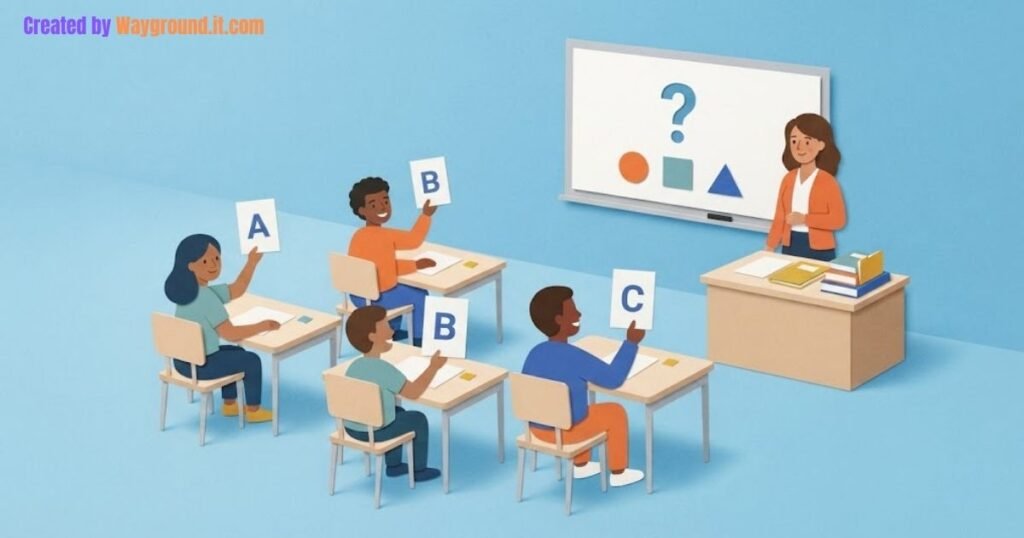
Quizlet Live turns a study set into a live matching game. Students connect terms with definitions, either together or individually. It suits reviewing relationships with clear matches, such as vocabulary and meanings, symbols and names, or concepts and concise descriptions.
In team play, the answer choices are distributed across teammates’ screens, so students need to communicate before choosing. In individuals mode, each player works through their own choices.
A successful match shows that students selected the right association. It does not, by itself, show whether they can explain a concept or use a word in a new context. Plan a brief follow-up if that is your lesson goal.
If you are still choosing between study tools, our Wayground vs Quizlet comparison covers the broader platform decision.
What do you need before starting?
Use a teacher account on the Quizlet website, prepare a checked study set, and make sure students have devices. Hosting happens through the website; the mobile app is for joining and playing rather than starting Classic Live. A shared display helps everyone see the lobby and progress.
Check these requirements before class:
| Requirement | Teams mode | Individuals mode |
|---|---|---|
| Minimum players | 4 | 2 |
| Minimum study-set content | 6 term–definition pairs | 6 term–definition pairs |
| Student equipment | One computer or mobile device per player | One computer or mobile device per player |
| Suggested classroom use | Discussing matches together | Working separately or joining remotely |
The minimums come from Quizlet’s teams setup instructions and individuals setup instructions.
Before opening the lobby, read every pair in the set. Watch for two terms with the same vague definition, spelling mistakes, and descriptions that rely on information students have not learned.
How do you host a Quizlet Live game?
Start from the study set you want students to review, then select the live activity and playing mode. The setup screens differ slightly between teams and individuals, but both end with students joining a lobby and the teacher starting the game.
- Sign in on the website. Use the account you identified as a teacher account.
- Open your study set. Check its content before launching the session.
- Select Live, then Classic Live. Make sure you are opening the intended activity.
- Choose a mode. For teams, follow Get Started → Random Teams. For individual play, follow Create game → Individuals.
- Choose the prompt direction. Decide whether students should match definitions to terms or terms to definitions.
- Share the displayed code. Keep the lobby visible while students enter.
- Check the player list. Confirm expected students have arrived, then select Create game and Start game as prompted.
This sequence follows Quizlet’s help documentation and official teacher guide. Button order can differ between the two modes; follow the selected mode rather than switching workflows halfway through.
For team play, allow a moment for students to locate their teammates. Before the first round, establish one classroom rule: explain the likely match before anyone taps an answer.
How do students join?
Students join using the code provided by the teacher. They can use a computer or mobile browser, and Quizlet also provides an app-based joining route. They should use the code displayed for the classroom session rather than search online for a random game code.
- Open the Quizlet Live join page.
- Enter the teacher’s code and select Join game.
- Enter a name the teacher can recognize.
- Select Let’s go, then wait for the host to begin.
In the mobile app, Quizlet’s joining instructions use Search → Play Quizlet Live → Join a game. Students can enter the code or scan the game’s QR code there.
Read the code aloud as well as displaying it. Before restarting a session because someone cannot join, compare the code on their screen with the one in your current lobby.
What does a useful vocabulary activity look like?
A useful activity starts with a small, coherent set and ends with students doing something beyond recognizing definitions. The example below reviews six academic instruction words. It is an original lesson design you can adapt, not a report of a classroom trial or measured learning gains.
Prepare six clear pairs
Use these term–definition pairs after students have encountered the words in lessons:
- Compare: Explain how two or more things are alike and different.
- Summarize: Give the main ideas in a shorter form.
- Infer: Reach a conclusion using evidence and reasoning.
- Justify: Support an answer or decision with reasons or evidence.
- Classify: Arrange items into groups using shared features.
- Sequence: Put events or steps in an appropriate order.
Read the definitions against your curriculum’s wording. If your class uses “compare” more narrowly, revise the pair before playing rather than expecting students to guess which convention applies.
Play, then check transfer
Use definitions as prompts so students select the matching instruction word. After the round, close the answer choices and give students these three tasks on paper:
- “Put the events from the story in the order they happened.” Which instruction word fits?
- “Choose the strongest claim and support your choice with two details.” Which word fits the support step?
- Write a new classroom instruction that asks someone to classify.
The first answer is sequence; the second is justify. For the third, accept an instruction such as “Group the shapes by their number of sides,” because it states a grouping rule.
Now you have something the game result alone cannot provide: a small sample of how each student interprets or uses the vocabulary. Our middle-school vocabulary games offer other formats when you want to change the response task.
Should you choose teams or individuals?
Choose teams when explaining and discussing matches is part of the activity. Choose individuals when students need to work separately, when the group is small, or when coordinating team conversation would interrupt the lesson. The mode should support your purpose rather than determine it.
In teams, listen for the reasoning behind a choice. If one confident student gives every answer, ask the group to rotate who explains the next match before selecting it.
For individual play, use a separate written response when you need students to explain their reasoning. A correct selection still leaves the method invisible.
If students do not each have a suitable device, choose a different format rather than assume teams mode removes that requirement. These classroom review games without student devices provide alternatives using shared displays and paper responses.
What should you check when setup does not work?
Start with the account, device, study set, and selected mode. Those checks address the documented requirements without immediately rebuilding the activity. Distinguish between a missing host control, a game that cannot start, and a student who cannot enter; each needs a different check.
- No hosting option: Confirm you are using the website and that the account identifies you as a teacher.
- Game will not start: Compare the joined-player count and study-set size with the requirements above.
- Student cannot enter: Recheck the current session code and the join page before creating another lobby.
- Need custom groups: Quizlet’s customization documentation lists custom teams and audio among additional Quizlet Plus for teachers features.
If those checks do not explain the problem, record the exact message and contact Quizlet support. Avoid changing several settings at once; you will lose track of what resolved the issue.
Is Quizlet Live free?
Quizlet describes its basic Live game as free, while its help pages distinguish additional teacher customization features. You do not need to assume every Quizlet subscription feature is included simply because you can launch Classic Live.
For your first session, prepare one checked set, choose a mode, and plan one short follow-up question. That keeps the activity manageable and gives you a reason to use the answers after the game ends.