
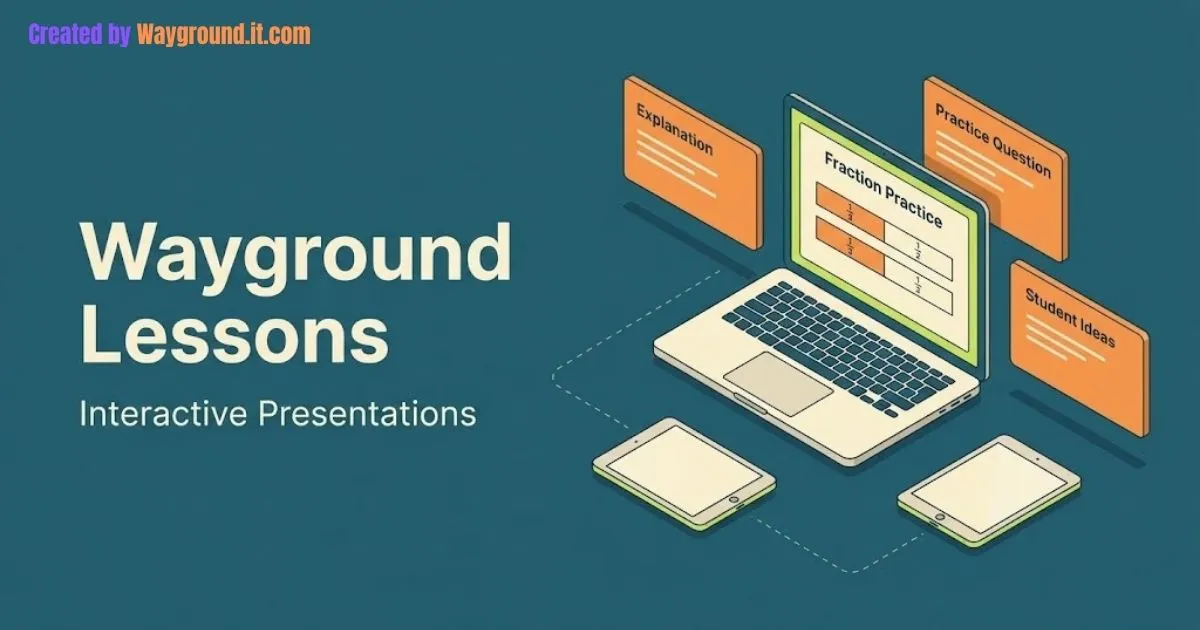
Wayground Lessons combine teaching slides with questions in one activity. The creation tool now calls this format Presentation. To build one, choose Create → Presentation, add your teaching material and question slides, review the sequence, and publish it for live instruction or independent work.
This independent guide covers creation, delivery, imports, and a ready-to-adapt math example.
What are Wayground Lessons, and how do they differ from quizzes?
A lesson brings instruction and student responses into the same sequence. Use it when learners need an explanation, example, or demonstration before answering. A quiz is usually the simpler starting point when your main task is checking knowledge students have already encountered, rather than introducing the material within the activity.
Wayground’s overview of its resource formats describes Lessons as multimedia slides with embedded questions. Its current presentation creation guide uses the newer Presentation name.
Choose a starting point that fits your goal:
| Your teaching goal | Useful starting point | What to prioritize |
|---|---|---|
| Introduce a concept and check understanding | Presentation | Short explanations followed by application |
| Review previously taught content | Assessment or quiz | Questions that reveal specific gaps |
| Adapt an existing teaching deck | Presentation | Remove unnecessary slides and add response points |
| Collect a brief end-of-lesson check | Short assessment | One focused question and a reason |
For the question-first workflow, see how to create a quiz on Wayground. The broader Wayground usage guide explains how the resource types fit together.
How do you create and deliver a Wayground presentation?
Begin with a clear learning goal and a short sequence of explanation, practice, and feedback. Build the resource or bring in existing content, then choose how students will work through it. Review the material and delivery settings separately: a finished slide deck still needs an appropriate session setup.
Build the resource
The official creation guide documents this route:
- Select Create → Presentation.
- Start with a blank slide.
- Use + Add to insert slides, questions, or supported media.
- Organize the sequence and check the content.
- Select Publish when it is ready.
Bring in material you already have
Under Import content, you can select a Google Slides file through Google Drive or import a PDF. Select the material you need, then review it in the presentation editor.
You can also reuse community resources. The library import instructions explain how to search a topic, preview a resource, and add individual slides or questions to your own lesson.
Run a live lesson or assign independent work
Follow the official lesson delivery guide:
- Open the finished resource.
- Choose Start now for a live session or Assign for homework.
- Review the available session settings.
- Complete the launch and share the resulting student invitation.
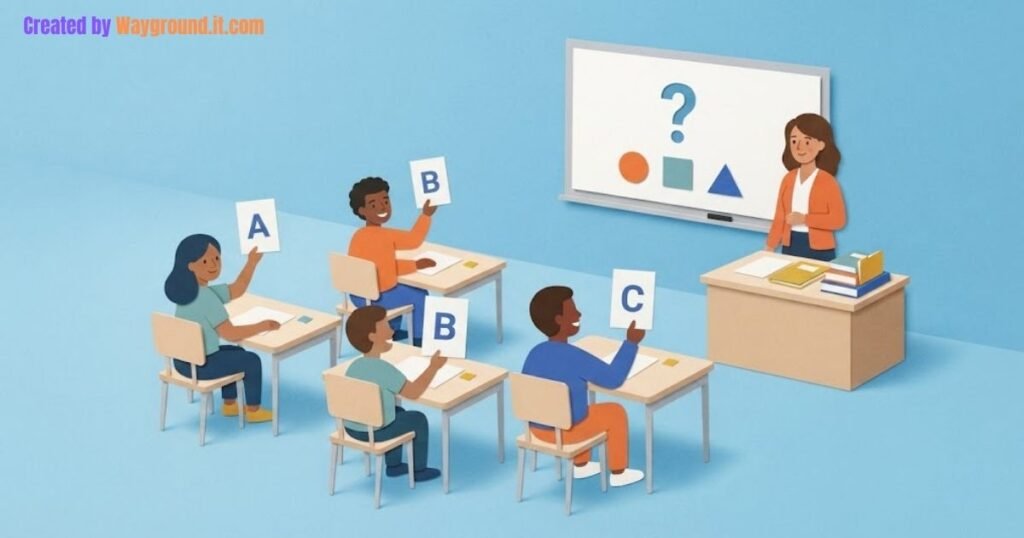
Live delivery lets you guide the class and review responses as you teach. The documented lesson tools also allow a student-paced segment that ends at a slide you select.
For homework, review the scheduling and late-submission options described in Wayground’s session settings guide.
Use our Wayground homework guide for the assignment workflow. Share the student joining instructions when learners need help opening it.
What does a useful interactive lesson look like?
A useful lesson gives each slide a job: introduce an idea, demonstrate a method, collect evidence, or respond to a misconception. Place a question where its answer could change your next teaching move. The worked sequence below shows how to make those decisions explicit without adding unnecessary slides or effects.
A six-slide example: comparing fractions
This is an original teaching sequence you can adapt, not a report of a classroom trial. Its goal is specific: students should compare fractions by reasoning about their size, rather than comparing numerators or denominators alone.
- Start with a prediction. Ask, “Which is greater: 3/4 or 2/3?” Collect an answer before presenting the method.
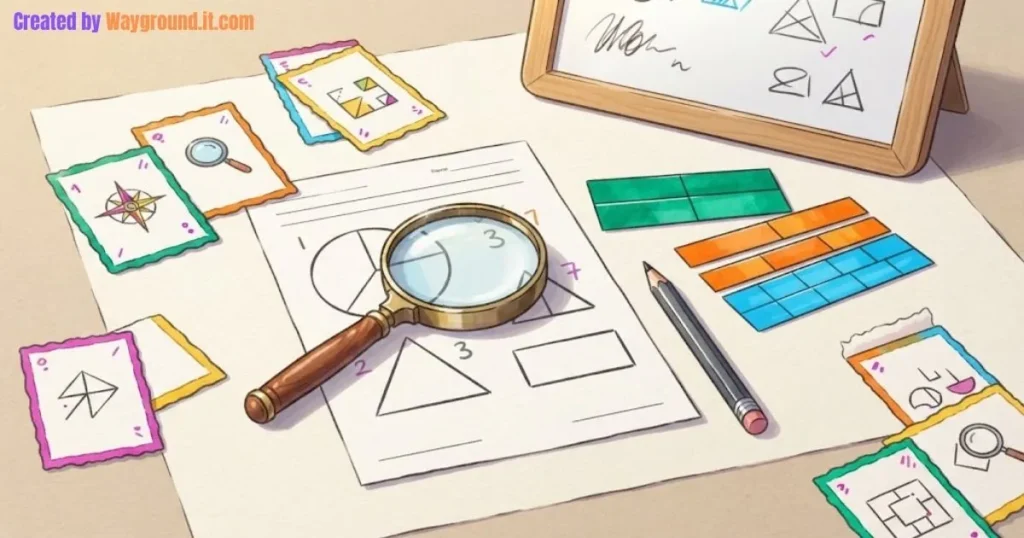
- Show equal wholes. Display two same-sized bars, partitioned into fourths and thirds. Shade three fourths of one and two thirds of the other.
- Connect the representations. Show that 3/4 equals 9/12 and 2/3 equals 8/12. Explain why using twelfths makes the comparison direct.
- Check the misconception. Present the claim, “2/3 is greater because thirds are bigger pieces.” Ask students to explain why that reasoning is incomplete.
- Change the numbers. Ask students to compare 5/8 and 3/4. The expected comparison is 5/8 < 6/8, so 3/4 is greater.
- Finish with a reason. Ask students to complete: “A larger denominator does not always mean a larger fraction because…” Look for an explanation about piece size and the number of pieces.
Decide what you will do with the responses
Before teaching, identify one response that would make you pause. In this sequence, a student who ignores the different number of shaded pieces needs a return to the visual model, not merely another timed comparison.
Wayground’s lesson guide describes reviewing responses and pausing to discuss a question. Our Wayground reports guide covers the wider reporting workflow.
Make an independent version understandable
Read the slides without delivering your usual spoken explanation. If a learner cannot tell why 9/12 appears after 3/4, add that missing explanation directly to the resource.
Which mistakes make interactive slides less useful?
The common problems are instructional as well as technical: crowded imports, questions that only repeat the previous sentence, and feedback that never changes the lesson. Review the presentation as a learner would experience it. Check readability, answer accuracy, pacing, and whether the activity makes sense without your usual verbal directions.
Treating imported content as fully editable
PDF pages become static slide images. For imported Google Slides, the documented update workflow involves editing the source file and then updating the imported slide or slides in Wayground.
Check diagrams and small labels on a student-sized screen. An imported page that looked clear on a projector may need to be divided into several simpler teaching points.
Accepting generated questions without review
If you use AI-generated questions, verify both the answer key and the reasoning. Solve each math item yourself, check units and diagrams, and remove choices that give away the answer through wording.
Ask why students chose a common denominator, rather than only asking them to recall the number shown.
Ignoring student access and account limits
The Starter plan overview lists instructional resources but notes regional differences. Check the features available in your account before building around a particular question type.
The accommodations catalog also lists lesson-specific supports, including Reading Mode and Notes to Refer. Check which supports fit the activity instead of assuming one display works equally well for every student.
What else should teachers know about Wayground Lessons?
The main decisions concern the resource name, delivery method, imported content, and account access. Use the current editor labels when building, and check the available controls before assigning work. These answers cover common starting questions without assuming that every account has identical features or that every imported slide is ready to teach.
Are Wayground Lessons now called Presentations?
Yes. The current creation guide uses Presentation and identifies Lesson as the former name. Other support pages still use Lessons. Look for Presentation in the creation menu when you want teaching slides combined with student questions.
Can students complete a lesson as homework?
Yes. Wayground documents asynchronous lesson delivery through the Assign option. Make the material understandable without live explanation, check the assignment schedule, and tell students what to submit before they begin working through the resource independently.
Can I use content from another teacher’s lesson?
Yes. The library workflow supports previewing resources and importing slides or questions into your own lesson. Check the content before publishing, and adapt vocabulary, examples, and difficulty to match what your students have already learned.
Can I mix teacher-led and student-paced work?
Yes. The documented live lesson tools let you switch into a student-paced segment and select its ending slide. Plan that section around a clear task, then use the responses to decide what the class should discuss next.
Is creating a presentation free?
Wayground’s free Starter plan lists access to instructional resource formats, including Lessons, with regional qualifications. Confirm the options in your account before planning a presentation that depends on premium question types or other restricted features.
Build one short lesson first. Choose a learning goal, explain the idea, ask students to apply it, and plan your response to a likely mistake. Expand the deck only when another slide helps students understand or helps you assess their thinking.
Research basis: Official Wayground creation, delivery, import, settings, plan, and accessibility documentation reviewed on September 28, 2026. This independent guide is not affiliated with Wayground or Quizizz. The fraction sequence is original instructional material, not a tested case study.