
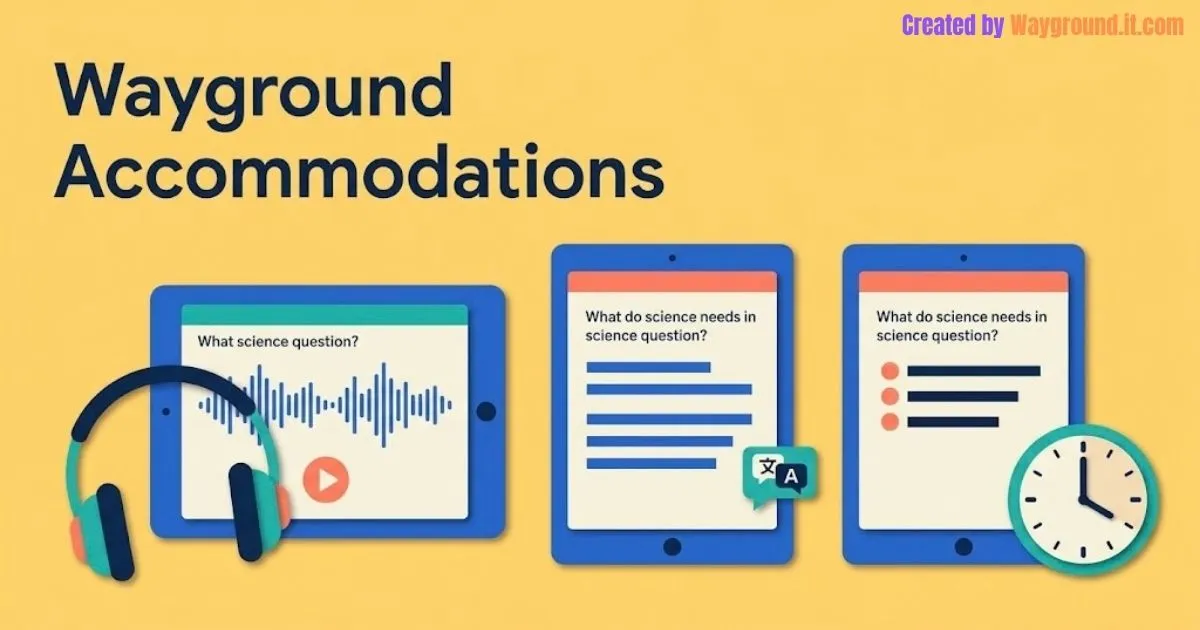
Wayground accommodations let teachers provide individual supports, such as text-to-speech, extra time, and translation, within a shared classroom activity. Set up the student’s support profile, check the session’s Student Support settings, and confirm the intended experience before students begin.
The challenge is choosing support that fits the learning goal, rather than simply enabling every available option.
This independent guide explains the setup, useful classroom applications, and limitations to check. It draws on official documentation rather than claiming classroom testing or guaranteed learning gains.
What are Wayground accommodations, and which should you use?
Accommodations adjust how students access or respond to an activity. Start with the barrier you need to address, then select a matching support. A student who needs more processing time may need a timing adjustment; a student who struggles to access written directions may need an audio or display option.
Wayground advertises more than 25 accessibility features in its accessibility statement. That does not mean every option applies to every resource or account. The official feature catalog describes these common options:| Support | What it changes | What to check |
|---|---|---|
| Read Aloud | Adds text-to-speech | Which parts of the resource can be read |
| Extra Time for Questions | Adds time to individual questions | Whether timing is part of the skill assessed |
| Translate | Presents supported content in another language | Whether translated subject terms remain appropriate |
| Font Size and Font Spacing | Adjusts text presentation | What the student finds comfortable |
| Reduce Answer Choices | Shows fewer answer options | Whether the change affects the intended challenge |
| Enhanced Display Mode | Simplifies the visual experience | Whether it helps the student focus |
Use the student’s documented support plan and your school team’s guidance to inform the setup.
If you are new to the platform, our how to use Wayground guide explains the broader creation and delivery workflow.
How do you set up accommodations before a session?
Set up the student’s saved profile first, then review the controls for the activity you are about to deliver. These are related settings, but they serve different purposes. A saved profile records ongoing support choices; the session controls determine how supports are applied during that particular activity.
Save the student’s support profile
Follow the official accommodation setup instructions:- Open Students → Accommodations. Administrators can use the Accommodations area under their admin controls.
- Select the intended student or students.
- Choose and configure their supports.
- Select Save Changes.
- Deselect that group before configuring students who need different settings, then finish with Done.
Check the session controls
Wayground’s Student Support settings update separates accommodations, tools, and individual settings.- Open the resource and choose Start now or Assign.
- Find Student Support in the session settings.
- For each relevant support, choose whether it applies to everyone, nobody, or students with a matching profile.
- Check the individual-accommodations control and any session-specific exclusions.
- Review calculator and other tool settings separately, then finish launching or assigning the activity.
For the remaining launch settings, follow how to host a Wayground game.
Run a short access check
Before graded work, use a brief practice activity with the intended students and devices. Check that students can find the support, operate it, and understand the directions without spending the lesson learning the interface.
How can teachers use these supports in real lessons?
Use the learning objective to judge whether a support removes an access barrier or changes the task itself. Then check the student’s actual experience. A support is useful when it helps the learner engage with the intended content, not simply because it produces a higher score or faster completion.
Make audio support usable
In a testimonial published by Wayground, seventh-grade science teacher Elyse Longo describes a student using headphones and text-to-speech to access classroom work. This is a teacher account selected by the company, not independent evidence of a measured achievement increase.Check headphones, volume, and reading speed as well as the setting itself.
According to the Read Aloud instructions, teachers set the resource language through Settings → Language → Save. Students can enable Read text aloud and adjust its speed from the join-screen settings or the session menu.There is a specific limitation for Passages: the feature catalog says Read Aloud covers the attached questions and answer choices, not the passage text. Check that distinction before planning a reading activity around audio access.
Consider the purpose of translation and hints
English teacher Rosemary Figueroa, also featured on Wayground’s accommodations page, describes using translation, additional time, and audio with newcomer English learners. Her account offers a classroom use case, rather than a guarantee that the same combination fits every learner.
Before enabling support, write down what students must demonstrate. Understanding a science concept and independently interpreting English vocabulary are different goals; the same translation choice may affect each differently.
For hints, review whether the prompt helps a student take the next step or supplies the reasoning you intended to assess. This is especially useful when planning formative versus summative assessment.
Review responses, not just completion
After the activity, inspect a few answers and ask students whether the support helped. A completed quiz alone cannot show whether the wording was clear or whether a student could explain the concept.
Use our Wayground reports guide to locate response information. Keep the support used in mind when interpreting results, and avoid treating one session as proof of long-term progress.
What mistakes should you avoid with accommodation settings?
Avoid treating every accessibility option as interchangeable or assuming that a setting guarantees an appropriate assessment. Check the account’s available features, the resource format, and the student group. Also distinguish presentation support from changes to question difficulty, since those choices can change what a result tells you.
Confusing accommodations with differentiated versions
Wayground has a separate feature for differentiated resource versions. It can change reading difficulty and question count, and its documentation says it is unavailable in teacher-led sessions.Choose that route when you intend to adapt the material itself. Review any generated version before assigning it; a simpler sentence can still accidentally change a question’s meaning.
Assuming every feature is included for everyone
The Starter plan overview lists accommodations but notes regional differences. Confirm the needed option in your account before designing a lesson that depends on it.Overwriting another teacher’s decisions
Wayground supports shared accommodation management between teachers in the same organization, with access granted first. Coordinate changes with colleagues so an edit made for one lesson does not create confusion elsewhere.What else should teachers know about Wayground accommodations?
The most useful checks concern access, reuse, student visibility, and the difference between support settings and content changes. Confirm those details before your first supported activity. The answers below summarize the main decisions, while the linked official documentation provides the longer instructions and account-specific limitations to check.
Are Wayground accommodations free?
The Starter plan lists accommodations such as Read Aloud and Extra Time, but Wayground says features can vary by region. Check your account for the specific support you need rather than assuming the entire catalog is included.
Do I need to configure students before every activity?
Saved student profiles can be reused, so you do not need to rebuild them for each activity. Still review the current session controls and exclusions before launch, particularly when switching between practice and a more formal assessment.
Can classmates see who receives accommodations?
Wayground says it does not announce individual accommodations to classmates. That does not prevent someone noticing headphones or a different screen. Discuss support privately and avoid displaying student accommodation records on a classroom projector during setup.
Can students adjust Read Aloud themselves?
The documented student controls include an on/off setting and a reading-speed slider, available before or during a session. Show students where to find these controls, then check the resource language and audio output if listening does not work as expected.
Are accommodations the same as easier questions?
No. Audio, display, and timing adjustments can change access without rewriting questions. Wayground’s differentiated versions feature changes the material itself. Some supports, including reduced answer choices, also affect task demands, so select settings according to the learning objective.
Start with one activity. Match the support to the student’s need, verify the session settings, and check the experience before using the results to guide instruction. A short access check is more useful than turning on a long list of tools without knowing how students will use them.
Research basis: Official Wayground documentation reviewed on September 28, 2026. This independent guide is not affiliated with Wayground or Quizizz; teacher testimonials are attributed to the company that published them.