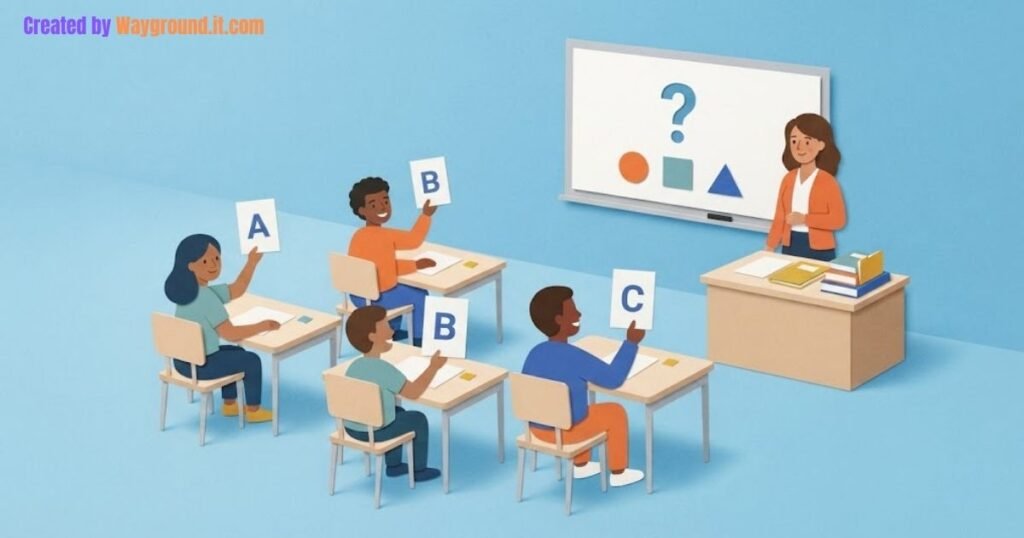

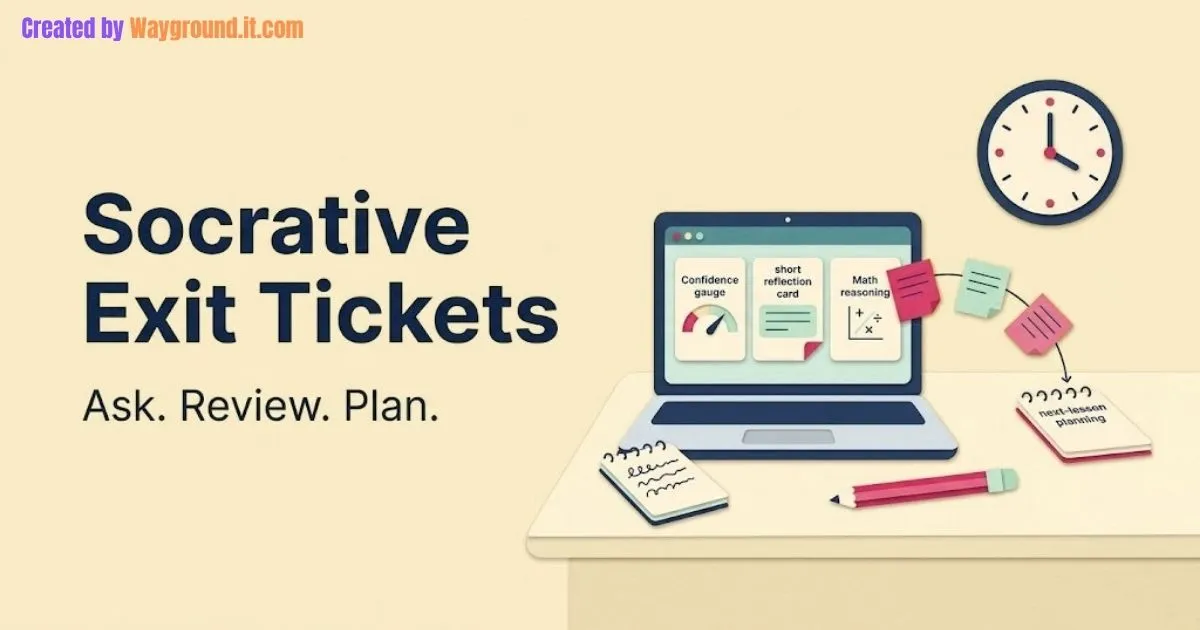
To launch a Socrative exit ticket, open your teacher account and choose Launch → Exit Ticket. Students join your room and answer three built-in prompts: a confidence check, a reflection on their learning, and a response to a question you provide. Finish the activity to review its report.
The part worth preparing is your own question. It should reveal something specific about the lesson’s learning goal, so you know what to explain, practice, or extend next.
What does the built-in exit ticket ask?
The built-in activity uses a fixed three-question format. Students first indicate their understanding, then describe their learning, and finally answer a teacher-supplied question presented separately, such as on the board.
These responses serve different purposes. Confidence tells you how students feel; the subject question gives them an opportunity to demonstrate what they can do.
One reporting detail matters: Socrative’s exit-ticket instructions say the confidence item defaults to marking option A correct. Other choices can therefore appear incorrect in the report.
Do not treat that automatic marking as evidence of mastery. A student who honestly reports uncertainty has not answered a content question incorrectly.
What do you need, and is the free plan enough?
You need a teacher account, internet access, and student devices for individual digital responses. Students can join through a browser without creating their own Socrative accounts, according to the official joining guide.
Socrative’s current pricing page lists these Free-plan limits:
- One room.
- Up to 50 students per activity.
- Five saved quizzes.
- A 30-day report history.
The saved-quiz limit matters if you create several custom exit tickets. Report history matters if you expect to revisit responses later in the term; decide what records you need before they fall outside your plan’s access window.
If students do not have devices, use the same prompt on paper. Our Plickers setup guide covers another option when you want to collect selected responses with teacher equipment and printed cards.
How do you run an exit ticket at the end of class?
Prepare the content question before opening the activity. Then collect independent answers and leave time to check that students submitted, rather than launching the ticket as everyone starts packing up.
- Choose one learning goal. Decide what you need to know before the next lesson. “Can students use a unit rate?” gives you a clearer target than “Did they understand math?”
- Display your question. Write or project the prompt and any necessary information. Keep it visible so students can refer to it while composing their answer.
- Share the room details. Students visit gosocrative.com and enter your room name, or use the invitation link or QR code you provide. Check that they enter the intended room.
- Start the built-in activity. Select it from the Launch area. Remind students that the final prompt refers to the question you have displayed.
- Monitor submissions. Use Live Results to check participation. Keep individual answers off the shared screen while students are still working.
- Close the activity when students finish. In Live Results, select Finish Activity. Socrative’s completion instructions explain that this closes access and allows report export.
Give students a clear direction: “Work independently and show your reasoning. If you are stuck, tell me where you got stuck.” Follow established accommodations and offer a paper response when typing or access becomes a barrier.
What is a useful question to ask?
A useful exit question checks the lesson’s main idea and asks for enough reasoning to interpret the answer. Avoid adding several unrelated skills merely because the activity can collect them.
Here is an original example for a middle-school lesson on proportional relationships. It is a suggested classroom task, not a report of a tested intervention.
Display this prompt:
Four identical tickets cost $12. Each ticket has the same price, and there are no extra fees. What would seven tickets cost? Explain your calculation.
Expected answer: $21. Dividing $12 by four gives $3 per ticket; multiplying $3 by seven gives $21.
When reviewing responses, distinguish the answer from the method:
| Example response | What to investigate | Possible next step |
|---|---|---|
| “$21, because 12 ÷ 4 = 3 and 3 × 7 = 21.” | A valid unit-rate method is present. | Give a new problem with different quantities. |
| “$15, because seven is three more than four.” | The student may be adding the same amount to both quantities. | Build a table showing the $3 increase for each extra ticket. |
| “$21.” | The result is correct, but the method is unknown. | Ask for the price of one ticket and how it was found. |
| “$84, because 12 × 7 = 84.” | The student may be treating the four-ticket price as the price of one. | Label what $12 represents before calculating. |
These interpretations are possibilities to check, not diagnoses from a single submission.
For the next lesson, change the numbers: five identical tickets cost $20; what do eight cost? The answer is $32, and students must establish a new unit price rather than repeat yesterday’s calculation.
For language arts, use a short passage and ask for an inference supported by one detail. For example: “Maya checked the clock three times and kept her packed bag beside the door. What might she be anticipating, and which detail supports your interpretation?” Accept defensible interpretations rather than requiring one emotion word.
For science, after teaching evaporation, ask: “A shallow dish of water is left uncovered. Its water level falls over several days without spilling. Where did the missing water go?” Look for an explanation involving water vapor entering the air, then investigate answers suggesting the water simply disappeared.
Can you create a custom Socrative exit ticket?
Yes. Create a regular quiz and use it as your end-of-lesson check. This lets you choose the wording and question types instead of relying on the fixed built-in format.
The official quiz creation guide describes the current setup:
- Open Library, select Add, and choose New Quiz.
- Give it a specific name, such as “Unit Rates — Exit Ticket.”
- Add multiple-choice, true/false, or short-answer questions.
- Check any answer keys, then select Save and Exit.
- Open Launch → Quiz, select your saved activity, and review its delivery settings.
For a short independent check, Open Navigation lets students move between questions and revise their answers. Use Teacher Paced when you want to send one question at a time; these options are documented in the quiz launch guide.
For the ticket-price example, use one short-answer question for the calculation and another for the explanation. Do not depend on an exact-match answer key to evaluate reasoning: Socrative documents that keyed short answers must match the specified wording and spelling.
If you prefer a standalone form workflow, our Google Forms exit-ticket guide explains how to build and share one.
How do you use the report to plan tomorrow’s lesson?
Read the subject responses before drawing conclusions from percentages. Separate a misunderstanding from an incomplete explanation or a missing submission, then choose a response that addresses the actual problem.
Open the completed activity under Reports. Socrative’s report guide describes the Export Results controls and report formats, including a summary PDF containing short-answer responses; available options depend on the subscription.
Use three temporary planning groups:
- Ready to apply: Students show a sound method. Give them a fresh question or a more demanding application.
- Needs a specific correction: Responses reveal a shared error. Model that exact point, then collect another independent answer.
- Needs clarification: Work is missing or too brief to interpret. Ask a follow-up before deciding what the student understands.
Keep confidence responses alongside the work, not above it. A confident student may need a correction; an uncertain student may already have a valid method.
Our formative vs summative assessment guide explains why the decision you make with the evidence matters more than the activity’s label.
What if students cannot access or complete the activity?
Check the room name and activity status first. A waiting screen can mean that no activity is running; Socrative’s student experience guide distinguishes waiting, completed, and ended states.
For a rostered room, students need the assigned Student ID. After an accidental disconnection, the same guide says students can rejoin with the same name or ID to resume.
If time is short, collect the displayed question on paper and note the access issue separately. An absent digital response should not automatically become an incorrect academic answer.
Before your next lesson, choose one question whose answer would change your teaching plan. Prepare it, collect the responses, and make one specific adjustment afterward. That is a manageable first use of an exit ticket—and a reason to read it before opening tomorrow’s slides.