









-
 Scroll to Top
Formative vs Summative Assessment: Complete Guide
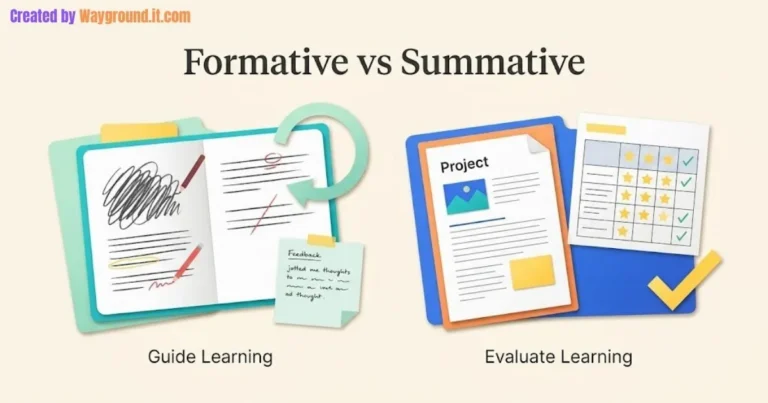
Read More: Formative vs Summative Assessment: Complete GuideFormative assessment uses evidence of learning to guide teaching and practice while learning is developing. Summative assessment evaluates achievement against…
No comments on Formative vs Summative Assessment: Complete Guide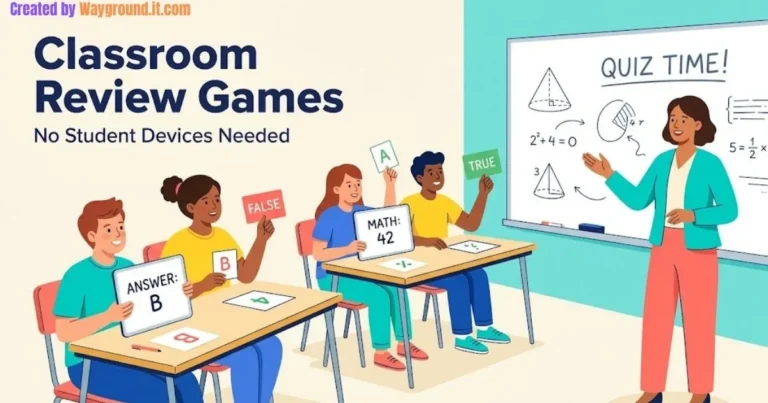
Classroom Review Games Without Devices: A Complete Guide
Read More: Classroom Review Games Without Devices: A Complete GuideClassroom review games without student devices can run with mini whiteboards, paper cards, a chalkboard, or one shared screen. Start…

Wayground Interactive Video: Complete Teacher Guide
Read More: Wayground Interactive Video: Complete Teacher GuideWayground Interactive Video lets you place questions and notes inside a video lesson. Playback pauses at selected moments so students…
Wayground Google Classroom: Complete Integration Guide
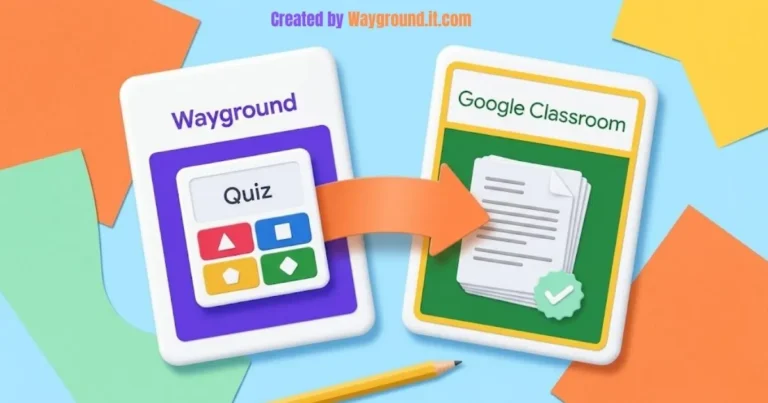
Read More: Wayground Google Classroom: Complete Integration GuideTo connect Wayground to Google Classroom, open Classes in Wayground, choose Google Classroom, and authorize your school Google account. Import…

Wayground Flashcards: Complete Teacher Guide
Read More: Wayground Flashcards: Complete Teacher GuideWayground flashcards let teachers create digital study cards, lead a classroom review, or assign independent practice. Students reveal each answer…
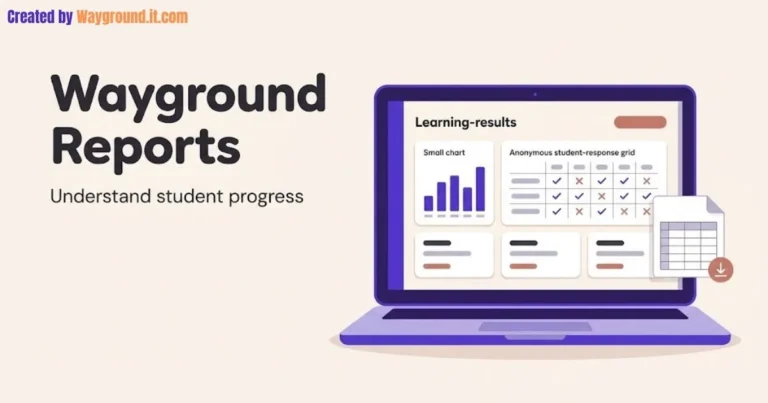
Wayground Reports: Complete Teacher Guide
Read More: Wayground Reports: Complete Teacher GuideWayground reports show how students performed in a live activity or homework session. To find them, open Sessions in your…
THE READING ROOMWAYGROUND GUIDESA little guidance. A better lesson.
 HELP CENTER
Less troubleshooting.
More teaching.Find a clear starting point for login, game codes and connection problems.
Read the guide JOINING A GAME
A code problem?
Start here.Check expired codes, session access and common entry mistakes.
Find the fix ACCOUNT HELP
Get signed in.
Get going.Work through passwords, school sign-in and browser issues step by step.
Explore login helpComplete Wayground Guide: Join, Create, Host & Learn
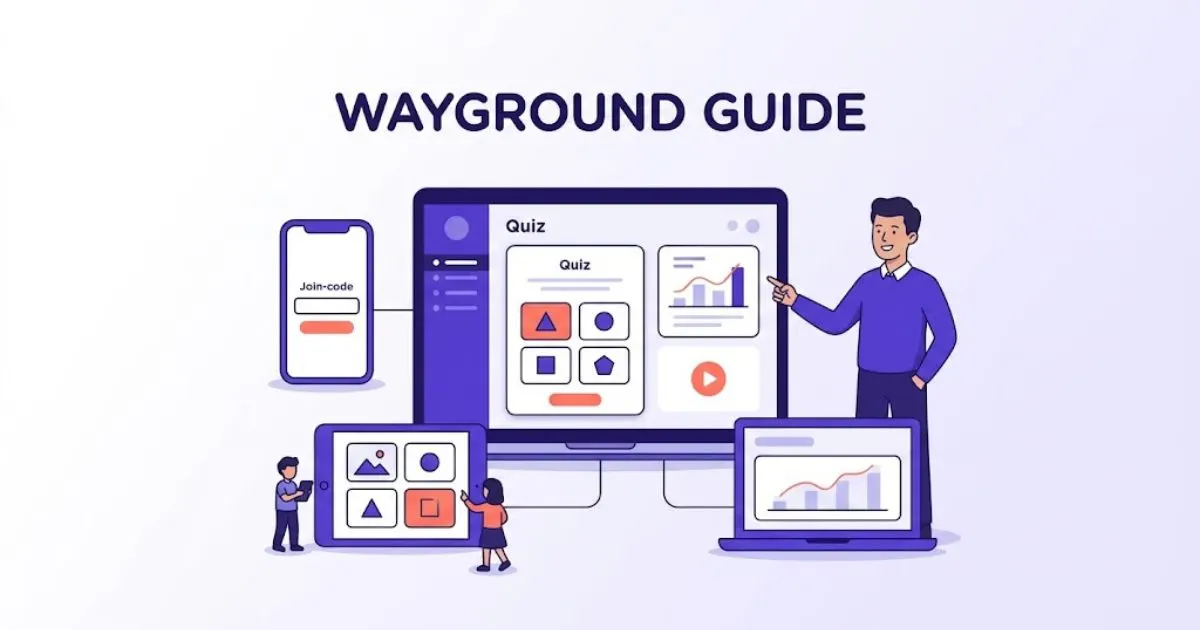
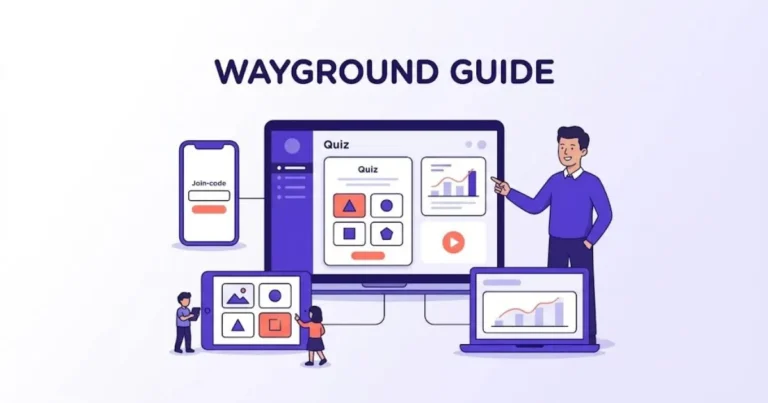
Wayground, formerly Quizizz, is a learning platform for creating and delivering assessments, presentations, videos, passages, and flashcards. Teachers can run live sessions or assign self-paced work.
Students can take part with a session code, link, QR code, or class assignment.
This Wayground guide gives you a clear route to every key task. You can learn how to join, log in, create content, host a game, assign homework, use AI, and solve common problems.
Independent guide: Wayground Guide is not owned, operated, sponsored, or endorsed by Wayground or Quizizz. We review public product information and official support documentation to explain the platform in plain English. Read About Us for our editorial approach.
Where should you start on Wayground?
Start with the task you need to complete now. Students usually need the join or code guide, while teachers often need the create, host, homework, or AI guides. If something is not working, use the troubleshooting hub instead of repeating the same setup steps.
Your goal Best place to start Understand the platform What is Wayground? Join a teacher’s session Join a Wayground game Enter or understand a code Wayground code guide Sign in to an account Wayground login guide Create an assessment Create a quiz on Wayground Start a live or homework session Host a Wayground game Learn the main tools How to use Wayground Fix a problem Wayground help center What is Wayground, and is it the same as Quizizz?
Wayground is the new name for Quizizz. The company announced the change in June 2025 after expanding beyond its original quiz format. Existing users did not move to a separate product; the platform now presents quizzes as one part of a wider teaching and assessment system.
Teachers can use Wayground for quick checks, independent practice, live review, homework, and formal assessments. They can also build presentations, passages, flashcards, and interactive videos.
Students answer on a phone, tablet, Chromebook, or computer. The teacher can view responses during the session and study reports afterward.
The rebrand can still cause confusion. Older links, app listings, emails, and support pages may use the Quizizz name or domain. That does not always mean you reached the wrong service.
Read What is Wayground? for the full platform overview. Our Quizizz to Wayground guide explains the name change in more detail.
How does Wayground work for teachers and students?
Wayground connects teacher-created learning material with student devices. A teacher selects or creates a resource, chooses how to deliver it, and shares access. Students answer the activity, while Wayground records results that the teacher can review during or after the session.
The normal workflow is simple:
- Choose the content. Create a new resource or select one from the public library.
- Choose the delivery. Start a live session or assign the activity for later.
- Share access. Give students a code, direct link, QR code, or class assignment.
- Complete the activity. Students answer on their own devices.
- Review the results. The teacher checks accuracy, responses, and available reports.
This structure works for a short exit ticket or a longer homework task. The settings can change, but the path stays familiar.
How do students join a Wayground game?
Students normally join through the official join page. They enter the unique session code supplied by a teacher, follow the name or sign-in prompt, and start the activity. A teacher may also share a direct link, QR code, learning management system assignment, or Wayground class invitation.
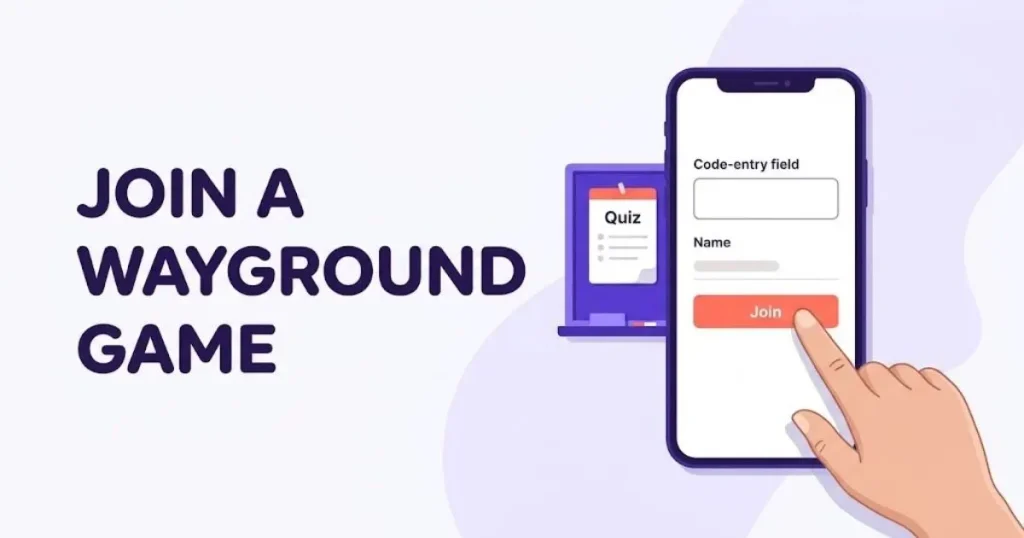
Use these steps when you have a code:
- Open wayground.com/join.
- Enter the code exactly as the teacher shared it.
- Select the button to continue.
- Enter your name or complete the requested sign-in step.
- Check that you joined the correct session.
- Wait for the teacher to start, if required.
Wayground’s privacy policy says students can join games without creating an account. Its current join-help article begins with an active student account. The prompt can depend on the session, school setup, or integration, so follow the instructions shown on your screen.
Never search for a random public code. Use the code from your teacher. Our Wayground join guide covers every entry method, while the Wayground code guide explains where codes come from and why they expire.
How do you log in to Wayground?
Go to Wayground, select Log in, and choose the same method used when the account was created. Current options include email, phone, and supported single sign-on services. Using a different method can create confusion or open a different account with no saved resources.
Teachers and students may see Google, Microsoft, Clever, or ClassLink options. A school can decide which method its users should choose.
Before resetting a password, check the original login method. A Google-created account may not have a separate Wayground password.
Use the Wayground login guide for normal sign-in steps. If the page loops, rejects your details, or opens the wrong account, see Wayground login not working.
How do teachers create a quiz on Wayground?
Teachers can build an assessment from scratch, import or adapt existing material, or start with a resource from Wayground’s library. Add the questions, answer choices, correct answers, explanations, and settings. Preview the activity before publishing or starting a session.
A basic creation workflow looks like this:
- Sign in with a teacher account.
- Select the option to create a new resource.
- Choose an assessment or another content format.
- Add questions and mark the correct answers.
- Set timing, points, media, and feedback where available.
- Preview the resource from a student’s view.
- Save or publish it.
- Start it live or assign it for later.
Keep each question focused on one learning goal. Use plausible wrong answers. Avoid clues such as one answer being much longer than the rest.
For a classroom-ready checklist, follow How to create a quiz on Wayground.
How do you host a live game or assign homework?
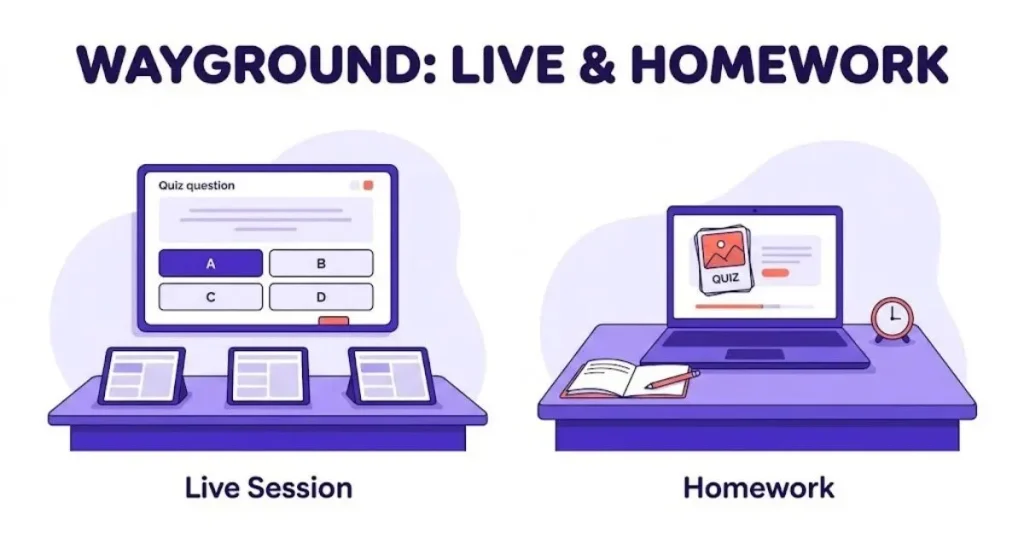
Open a resource and choose Start now for a live session or Assign for self-paced work. Select the available mode and settings, then launch the activity. Wayground creates a unique code that students can use, unless you assign the work directly through a connected class.
Live and assigned sessions serve different needs:
Session type Best for What students do Teacher-led live session Direct instruction and class discussion Move through the activity with the teacher Student-paced live session In-class practice at different speeds Work independently while the session stays live Homework assignment Review, catch-up, and remote work Complete the activity before the deadline A live code appears on the teacher dashboard. A homework code appears with the assigned session details. Codes are generated automatically and expire when the session ends.
The full setup is in How to host a Wayground game. For work completed later, read Wayground homework mode.
What can teachers create and deliver?
Wayground supports more than multiple-choice quizzes. Its current plans list assessments, presentations, passages, flashcards, and interactive videos. The right format depends on whether students need instruction, practice, recall, reading comprehension, or a quick check for understanding.
- Assessments measure knowledge with supported question types.
- Presentations combine instruction with interactive checks.
- Passages pair reading material with questions.
- Flashcards support recall and independent study.
- Interactive videos pause media to check understanding.
Availability can vary by plan. The Basic plan has limits on some question types, library access, and storage. School and district plans unlock more controls and content.
Choose the smallest format that fits the goal. A five-question check does not need a full presentation. A complex lesson may need more than a single quiz.
How does the Wayground AI quiz generator work?
Wayground AI can draft assessments from a prompt, document, website, curriculum reference, YouTube video, or supported image workflow. Teachers can then edit the questions and answers before publishing. AI speeds up the first draft, but it does not remove the need for subject review.
The strongest workflow has four stages:
- Give the tool a focused source or prompt.
- Choose the grade, subject, and learning goal.
- Check every answer against the source.
- Edit wording, difficulty, and accessibility before use.
Wayground’s own support documentation warns that AI output may contain inaccuracies. That warning matters. Check facts, calculations, reading level, answer keys, and potentially biased wording.
Do not upload private student records or sensitive personal information as source material. Use curriculum content that you are permitted to share.
See our Wayground AI quiz generator guide for supported inputs and a safer review process.
Which Wayground game modes and learning supports matter most?
Wayground offers teacher-led and student-paced delivery, plus game-style modes that change the pace or presentation. It also advertises more than 25 accommodations and modifications. These tools can help teachers adjust access without rebuilding a separate activity for every learner.
Mode choice should follow the learning goal:
- Use teacher-led delivery when discussion matters.
- Use student-paced delivery when learners need different amounts of time.
- Use a game mode for low-stakes practice and energy.
- Use a test-focused setup when clean assessment conditions matter.
Available supports can include Read Aloud and other content or display adjustments. Options may depend on the plan, school settings, and resource type.
Our Wayground game modes guide explains the main choices and when to use each one.
What do Wayground reports tell teachers?
Wayground reports help teachers see how students performed on an activity. Depending on the plan and session, a teacher may review answers, accuracy, live response data, and standards-related information. Reports are useful when they lead to a clear teaching decision.
Look for three signals:
- A question missed by much of the class may need reteaching.
- One student’s repeated errors may show a specific misconception.
- A very easy item may not provide useful evidence of mastery.
Do not treat speed or points as the same thing as learning. Review the actual questions and responses before making a grading decision.
School and district plans add deeper reporting, shared resources, and wider integrations. Current integrations listed by Wayground include Google Classroom, Canvas, Schoology, Clever, and ClassLink, with access varying by plan.
Is Wayground free, and which devices does it support?
Wayground currently offers a Basic plan that it describes as free for teachers, with no credit card required. The official plan page lists support for up to 100 students on Basic. Paid school and district access adds more question types, resources, reporting, integrations, and administrative controls.
Do not rely on an old third-party price table. Plans and limits can change. Check the official Wayground plans page before making a purchase decision.
Students can participate through common computers, tablets, and phones. Wayground also provides mobile apps.
There is one important limitation. Official technical guidance says creating and editing assessments is supported on a desktop, PC, or laptop, not on mobile. A phone works better for joining and answering than for building content.
Is Wayground safe for students?
Wayground is designed for education, but each school should still review its privacy, security, age, and consent requirements. The company’s current privacy policy describes COPPA compliance, FERPA support, limited data collection, no behavioral advertising for students, and options for access or deletion.
The policy also says students can join games without creating an account. It states that the platform does not support direct student-to-student messaging and does not rent or sell personal information.
These are the company’s published commitments, not a security guarantee from this website. No online service has zero risk. Teachers should avoid putting sensitive student details inside quiz questions, public resources, or AI prompts.
Parents and school leaders should read the official Wayground Privacy Policy and their local school policy. Product settings and legal terms can change.
What should you do when Wayground is not working?
Start with the session, code, account method, browser, and network. Most join failures come from an expired code, a session that has ended, or a mistyped number. Login failures often happen when someone chooses a different sign-in method from the one used originally.
Try this order:
- Confirm that you opened the official Wayground site.
- Re-enter the code without spaces or changed digits.
- Ask the teacher whether the session is still active.
- Use the original Google, Microsoft, email, phone, Clever, or ClassLink method.
- Refresh the page or open a current supported browser.
- Check the school network, content filter, or device restrictions.
- Save a screenshot of the exact error before asking for help.
Use Wayground Help as the main troubleshooting hub. For a specific issue, open login not working, code not working, or common Wayground errors.
How does Wayground compare with other learning games?
Wayground fits teachers who want live delivery, self-paced work, varied content, and reports in one system. Kahoot places more emphasis on synchronized live energy. Blooket focuses on arcade-style modes, while Gimkit adds an in-game economy and deeper strategy.
Platform Strongest fit Detailed guide Wayground Mixed live and self-paced assessment What is Wayground? Kahoot Fast, whole-class live play Wayground vs Kahoot Blooket Game-first engagement and variety Wayground vs Blooket Gimkit Strategy and virtual-economy gameplay Wayground vs Gimkit No platform wins every classroom task. Choose based on the lesson, age group, available devices, reporting needs, and budget.
Start with the best Wayground alternatives if you are still comparing options.
Who should use Wayground?
Wayground is most useful for teachers who need quick creation, flexible delivery, and response data. Students can use it for live participation, assigned practice, and independent study. Tutors and training teams may also find the same quiz and presentation workflows useful.
It is a strong fit when you need:
- A live class check with instant responses.
- Homework that students complete at different times.
- Reusable assessments and learning materials.
- More than one content format.
- Accommodations for different learner needs.
- Reports that guide the next lesson.
It may be a weaker fit when the class has unreliable internet, students lack suitable devices, or the activity needs open-ended discussion without screens. Technology should support the lesson, not become the lesson.
Frequently asked questions
Is Wayground the same as Quizizz?
Yes. Quizizz changed its public name to Wayground in 2025. Existing accounts, resources, and the core classroom workflow continued under the new name, although some older pages or app references may still show Quizizz.
What is a Wayground code?
A Wayground code, also called a join code or game code, is a unique number created when a teacher starts a live session or assigns homework. Students enter it on the join page, and it expires when that session ends.
Do students need a Wayground account to join?
Not always. Wayground’s privacy policy says students can join games without an account. A school, teacher, class integration, or session may still require sign-in, so students should follow the prompt shown for their activity.
Is Wayground free for teachers?
Wayground currently describes its Basic plan as free for every teacher and says no credit card is required. Basic has feature and storage limits. Schools and districts can request paid plans with additional controls.
Can students use Wayground on a phone?
Yes. Students can join and answer on supported mobile devices, and Wayground also offers mobile apps. Teachers should use a desktop or laptop to create and edit assessments because official technical guidance does not support mobile authoring.
Why is my Wayground code not working?
The code may be mistyped, expired, or linked to a session that the teacher ended. Confirm every digit and ask whether the session is active. Then use the official join page and retry.
Does Wayground use AI to create quizzes?
Yes. Wayground AI can draft editable assessments from several source types. Teachers should verify every question and answer because the company warns that AI-generated content may contain inaccuracies.
Start with the Wayground task you need today
Wayground can feel broad because it covers creation, delivery, practice, games, reports, AI, and accommodations. You do not need to learn everything at once. Pick one task, follow the focused guide, and test it before using it with a full class.
Students can begin with Join a Wayground game. Teachers can begin with How to use Wayground or How to host a game.
How this guide was researched
Mohsin, the independent publisher behind Wayground Guide, reviewed Wayground’s current product, support, plan, technical, AI, and privacy documentation for this page. The goal is to turn official instructions into a shorter, easier route for teachers, students, and parents.
Key facts were checked on September 11, 2026 against these primary sources:
- Wayground official website
- Official join instructions
- Official login instructions
- Official join-code guidance
- Official live and homework instructions
- Official Wayground AI guidance
- Official technical information
- Official plans and features
- Official Privacy Policy
Wayground Guide corrects material when official instructions change. For an error or update request, use Contact Us or email Backlinkscartagency@gmail.com.
 Posted inTeaching Tools
 Posted inTeaching Tools
 Posted inTeaching Tools